Resources
Help and release notes
How every function works, in the same words as the in-app Help, and what changed in each version.
Help topics
Add projectorP
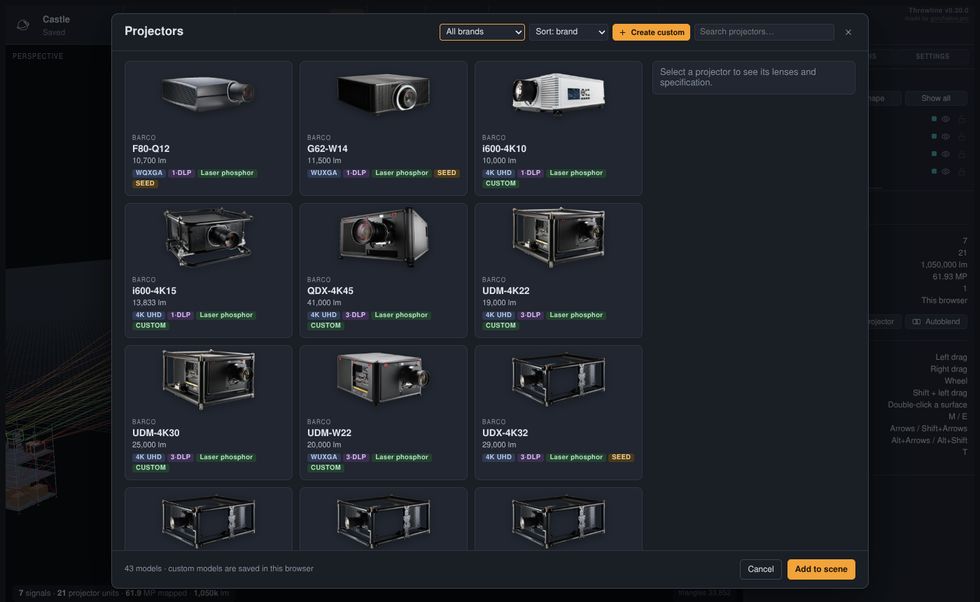
Opens the projector library. Pick a body, choose a lens set and a lens on the right, then Add to scene (or double-click the card). The projector lands in front of the camera, aims at the orbit target and focuses on the first surface it hits. Right-click in the viewport → Projector adds one at that point with the last body used.
AnnotateN
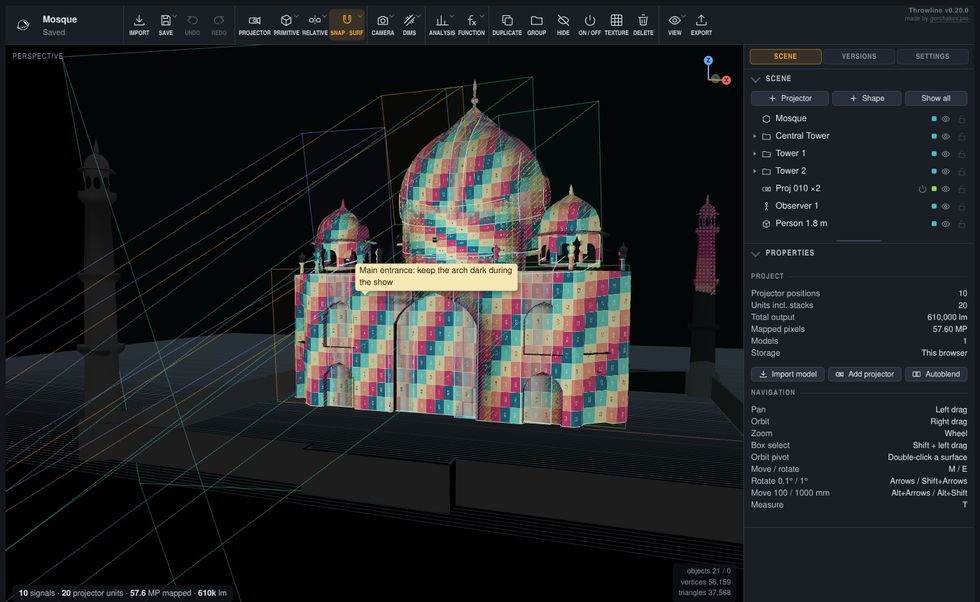
N or right-click → Annotate places a note in the scene.
Autodome
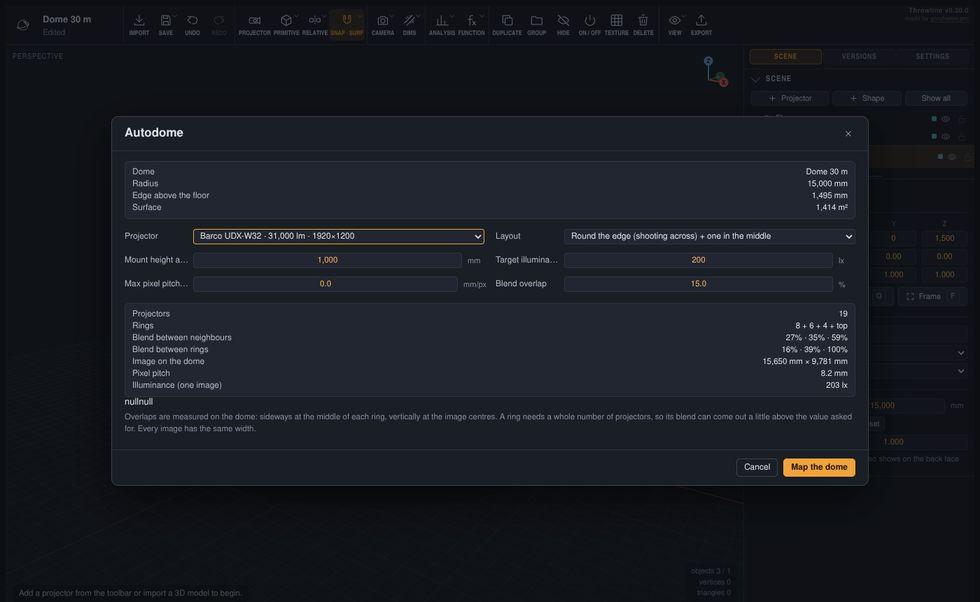
Function → Autodome maps a whole dome, the top included, with no gaps. Select the dome (a dome or sphere shape) or start Autodome and click the dome of an imported venue (a sphere is fitted to the clicked part). Choose the projector, the target illuminance (200 lx by default, the usual figure for domes), the maximum pixel pitch (0 = as large as the light allows), the blend overlap (15-20 % is usual) and the layout: Round the edge (the default: every projector on one circle at the edge of the dome, at the mount height above the floor - 1 m by default - shooting across to the far side, each ring turned so no projector stands in front of another, and one projector in the middle pointing straight up for the top), From the centre (a cluster in the middle, every lens out along its own aim) or Outside (the dome lit from outside, projectors on towers around it). Every image is traced onto the dome from where its projector stands, and the plan is accepted only when every point of the dome is covered and the blend is at least the value set everywhere: sideways between the images of a ring (also at the top and bottom of the images, not only at their centres) and vertically between rings and with the top image (a rectangle: the rings reach the circle it covers all round, not only its corners). Rings go from the base upward; a ring may take one or two projectors more when that saves a whole ring; no ring has fewer than four images; the last ring sits halfway between the ring below and the top image. The top image may be zoomed out within its lens range when that saves a ring; above 20 % wider its projector is stacked so the top stays as bright as the rest. Every image must be reachable with a lens of the set at its own throw. After Map the dome the result is checked on the dome itself (points all over it, nothing in the way, other projector bodies included) and the message shows how much of the dome is covered. Tip: a dome usually stands on a ring wall; with the projectors below its edge nothing shades the dome. Projectors standing above the edge, inside the dome, cast small shadows of their bodies on the far side near the base - the dialog warns about it.
AutomapShift+A
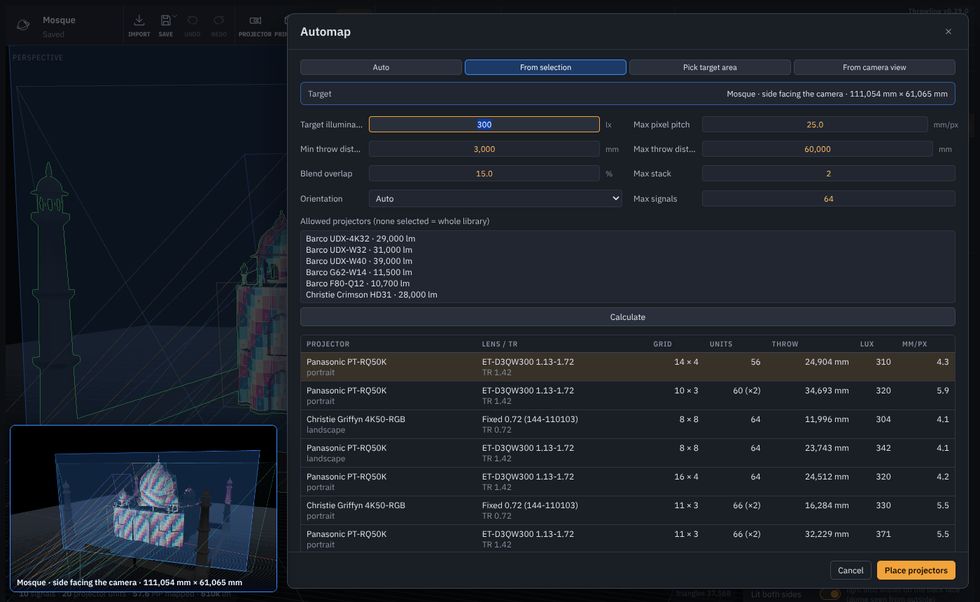
Function → Automap (Shift+A) lays projectors out automatically. Choose what to map: Auto (Spill9 reads the scene: a dome goes to Autodome, a space the camera stands in is mapped from inside, a closed object seen from outside - a pavilion, tent or vault - is wrapped round its outside, otherwise the side of the object ahead of the camera), From selection (the selected object, only the side that faces the camera - the back and the sides are left out), Pick target area (two corners on a surface, three points for a sloping area, the bottom and top of a tall target, or a free rectangle in space) or From camera view (everything the camera sees, with the projectors where the camera stands). The target shows in blue in the view and in a small window at the bottom left while you choose the projectors. A flat target gets a blended grid square to it (pick the solution from the table); a space is laid out in rows - from inside, or from outside (Map from: Outside) at the throw distance you set, the upper rows from tower decks high enough to reach the roof - checked on the real surface point by point. Automap reads what the object is (cube, box, pyramid, prism, cylinder, cone, sphere, dome, panel, triangle, vault, building) and maps it to suit: a flat top or the crown of a sphere square on from above, a dome with the Autodome form, a building by its facades. Pick target area → Areas in space places blue areas in the view (move, rotate, tilt and size them like any object), Done marking maps each square on. Inside a long space (a vault, tunnel or pavilion with rounded ends) Rows: Fewest projectors works out both ways - rows round the walls, and rows along the length with one on the ridge that close in on the tip of each end - with the images landscape and upright, takes out every image the others make unnecessary, and keeps the layout with the fewest projectors; the alternatives are listed under Compared. Every result reports how much of the target it covers.
Blend masks and warp
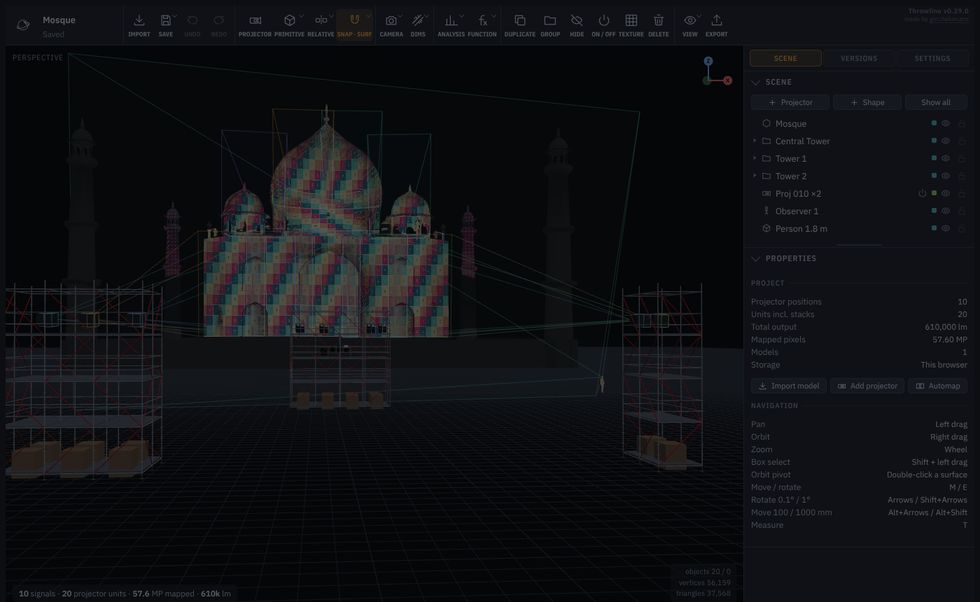
Export → Media servers → Blend masks and warp. For every projector that is on, Spill9 traces its image onto the venue model and works out its share of the light where it overlaps others, so the blends fade evenly and add up to one. You get a grey PNG mask per projector at its native resolution (gamma built in) for disguise (copy them to objects/DxTexture and multiply them over the output), and one MPCDI 2D file per content canvas - the picture a group with a group texture or a dome grid spans - with an alpha map and a warp per projector, for WATCHOUT 7 and PIXERA. Draft, Standard or Fine detail; the masks come from the model, so check them on site.
Blends and frustumsShift+B / B
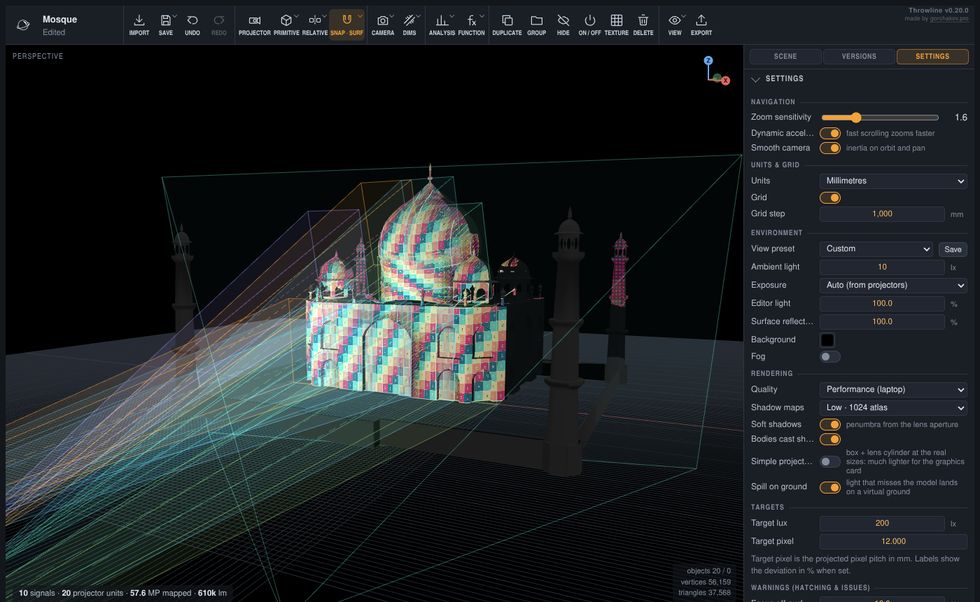
Shift+B turns blends on / off (overlaps cross-fade as on a media server). B cycles the frustum display.
Client comments
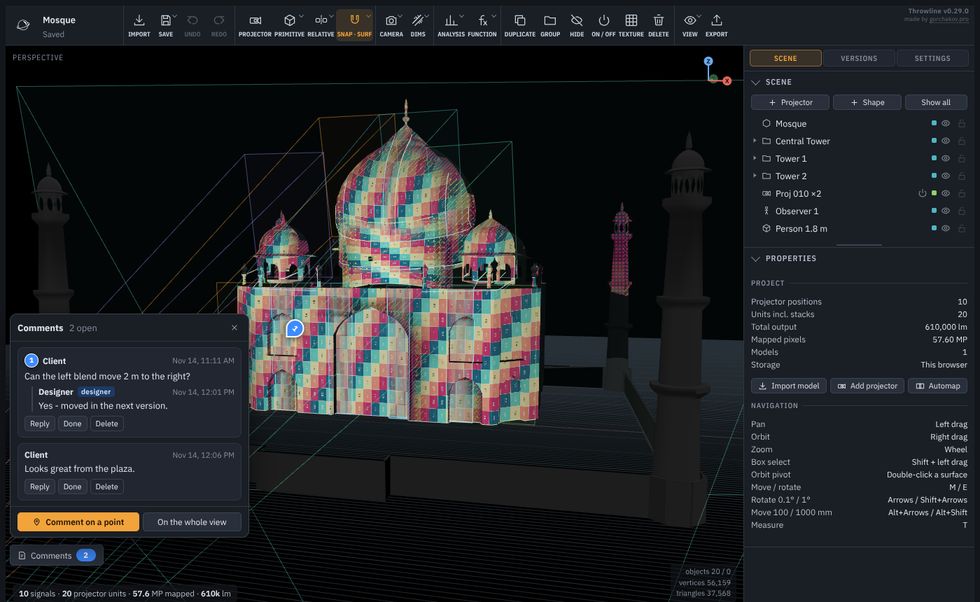
In the server edition a published client view takes comments: the client clicks Comments, then a point of the venue (or comments on the whole view), types a name and the comment. The comment keeps the camera it was made from. In the project the same Comments button lists them with pins in the view: click one to see what the client saw, answer it, mark it done or delete it.
Client view password
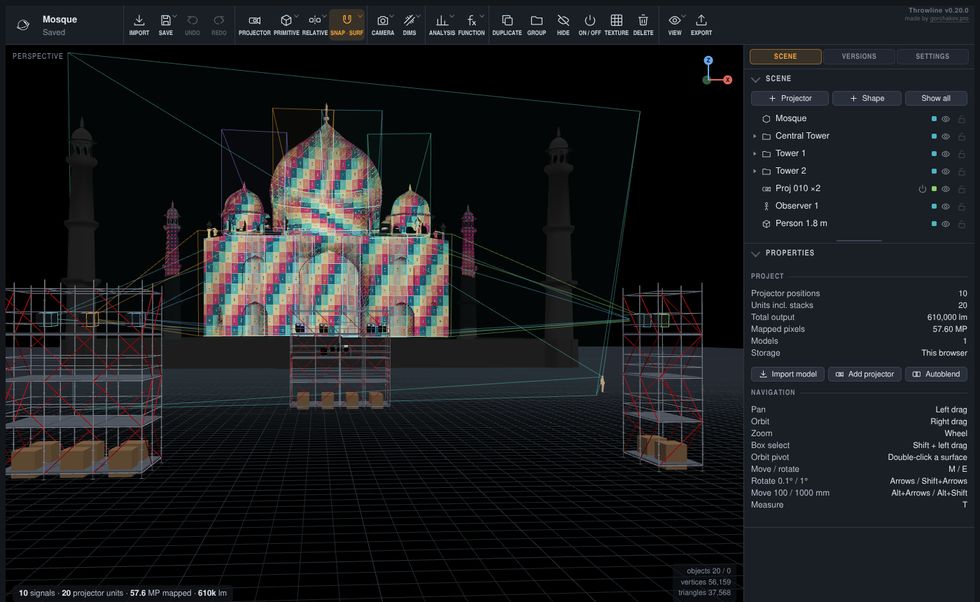
Export → Publish client view, then type a password and press Set: the link opens a password page first; after the right password the view opens on that browser for 7 days. Remove switches the password off; a new password signs every viewer out. Only a hash of the password is kept on the server.
Detach thisright-click
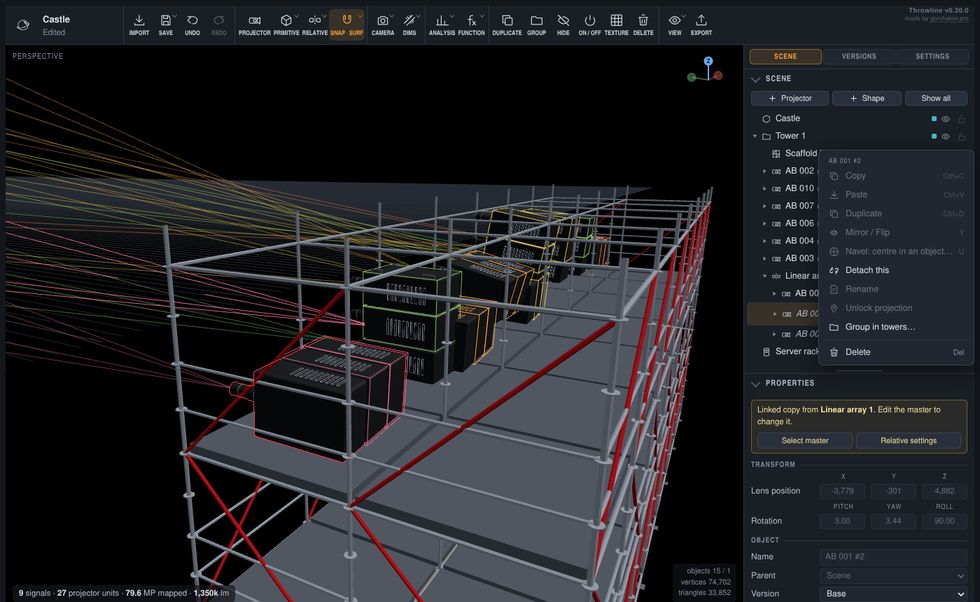
Right-click a linked copy (in the viewport or the Scene tree) → Detach this. That one copy becomes an ordinary object at the same place; the Relative keeps the other copies.
DimensionT
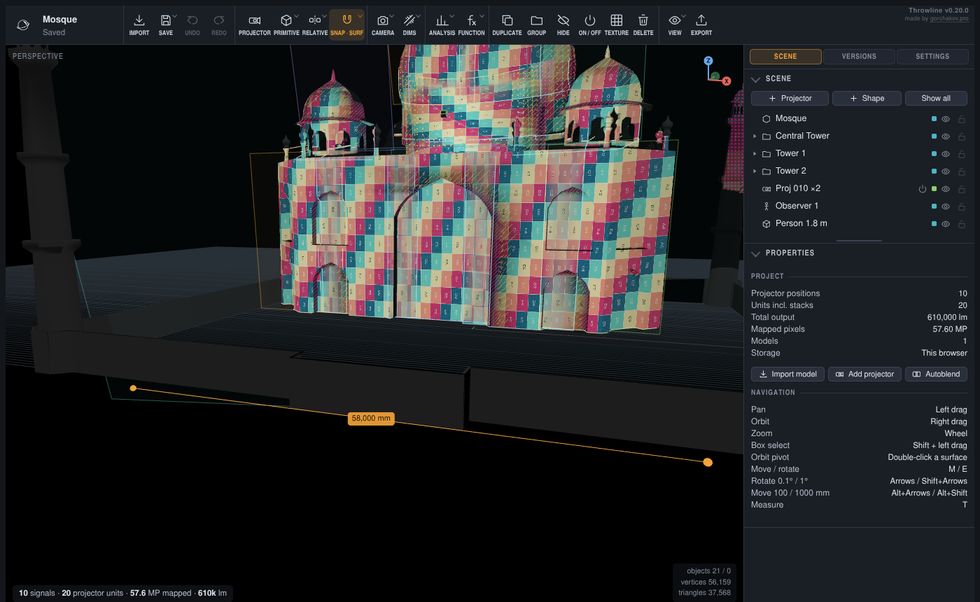
T or right-click → Dimension: click two points (snaps to vertices and edges) for a distance.
Dome grid
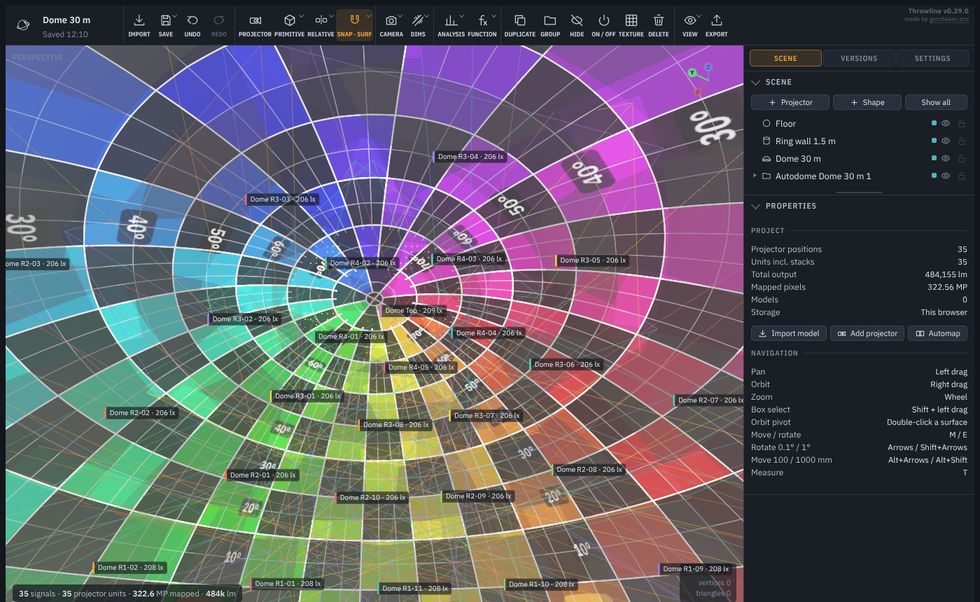
The dome grid is a test picture that lies on the dome itself: a ring every 10° of elevation, a line every 15° of azimuth with its figure (the main directions on orange plates), the horizon in orange and a target at the zenith. Every projector of the group shows the part of the picture its own image covers, so the grid runs on across the blends and the overlaps read as brighter bands. Autodome puts it on every new rig; choose it again for an Autodome group in its texture menu. Moving or resizing the dome moves the grid with it.
Enter and Esc in dialogsEnter / Esc
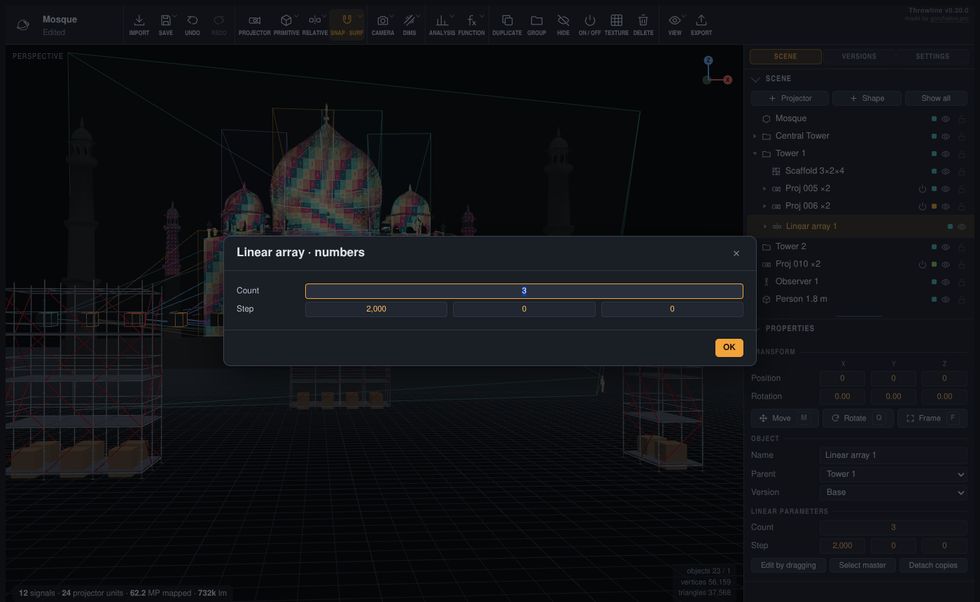
Enter confirms the open menu or dialog; Esc cancels the active tool or closes the dialog.
Equipment list
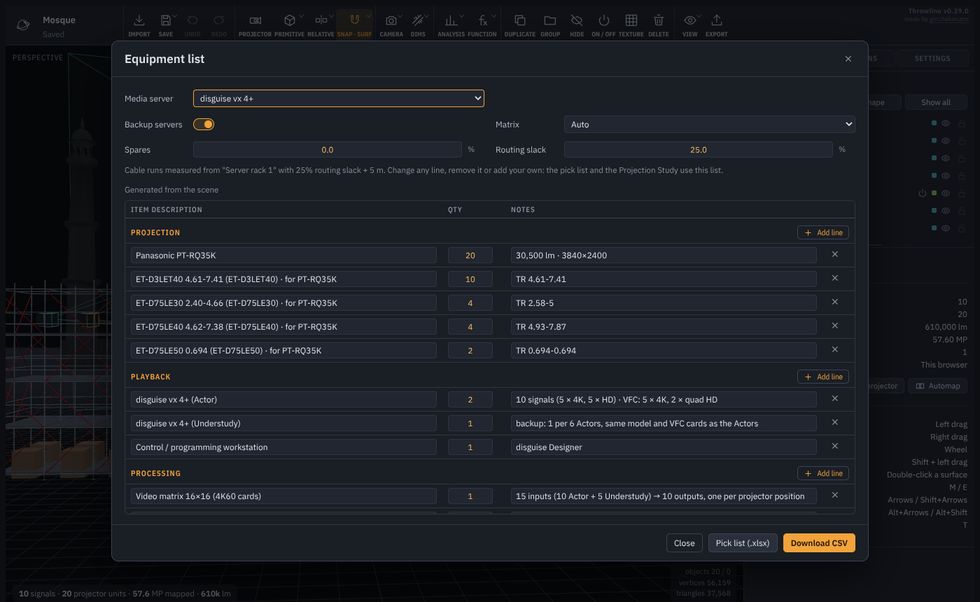
Export → Equipment list (edit)… shows the list the pick list and the Projection Study print, section by section with cables, spare lines, power and accessories. Change a line, remove it with ×, or add your own with Add line; Reset to the generated list drops your changes. The changes are saved with the project and used by the pick list (.xlsx), the Projection Study and the CSV.
FanP (in the tool)
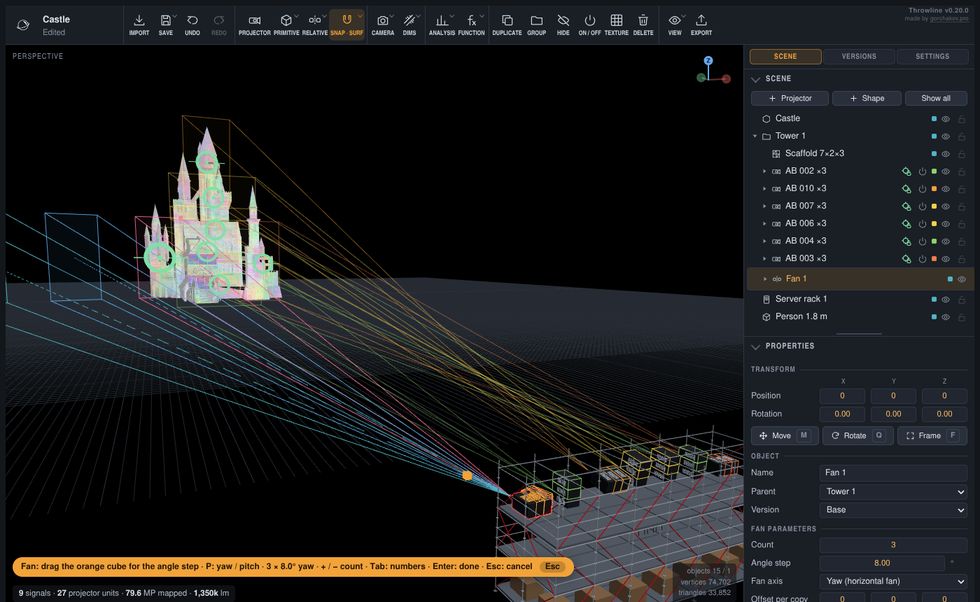
Relative → Fan rotates linked copies around the master's lens point. Drag the orange cube along the arc to set the angle step (0.5° steps); P toggles yaw / pitch; + / - change the count.
Focus point, Pin and AutofocusA
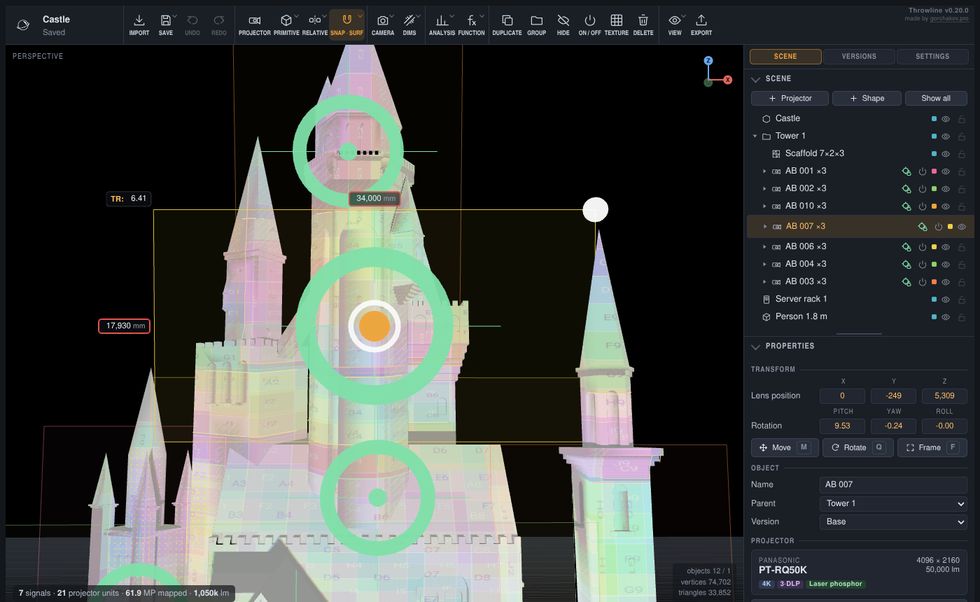
The orange point in the middle of the image aims the projector: drag it across surfaces. Click it for Pin, right-click for Autofocus. A (or Autofocus) measures the median depth of a 5 × 5 grid of rays over the central half of the image and sets the focus distance; Stick focus keeps it on the surface while you move.
Function menu
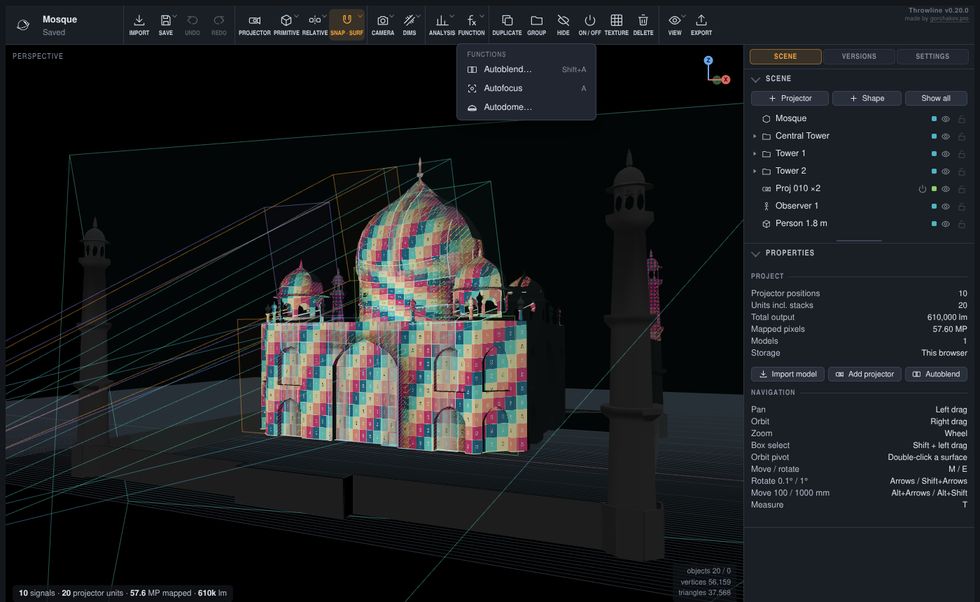
The Function menu in the toolbar holds the automatic tools: Automap (Shift+A), Autofocus (A) and Autodome.
Grid, fog and spill
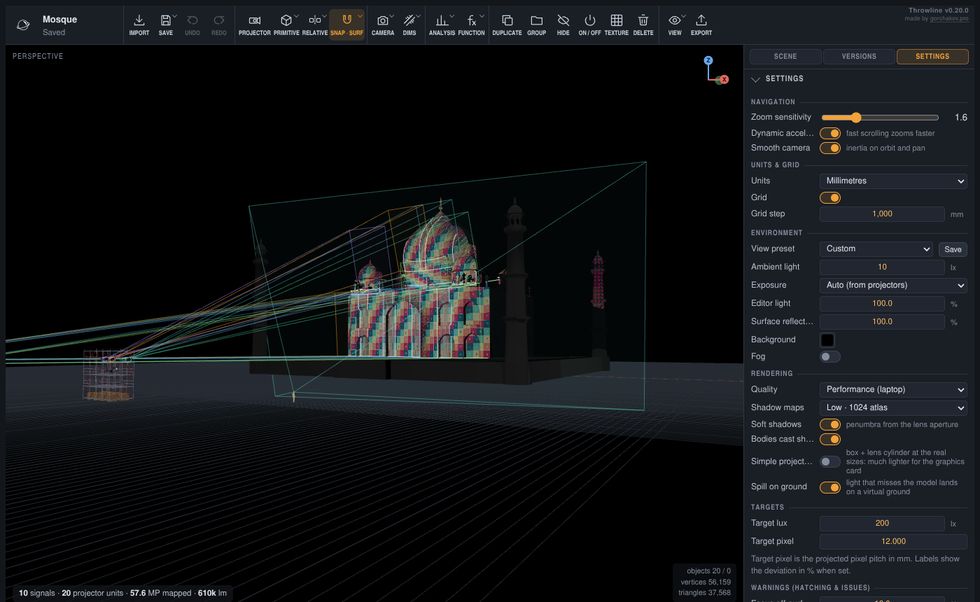
View menu toggles the grid, fog and the light spill on the ground.
Ground tower
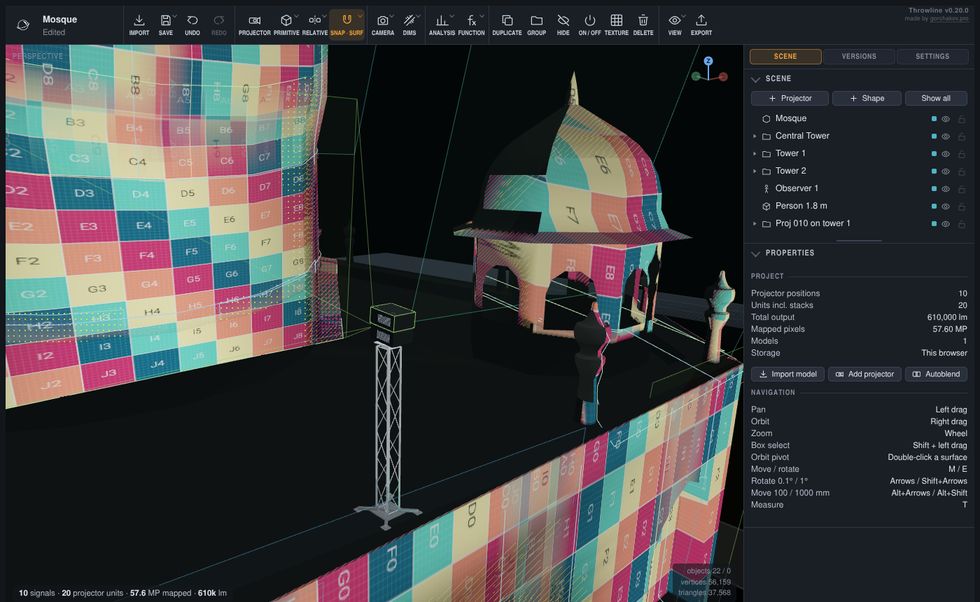
Primitive → Ground tower. With projectors selected, a vertical square truss tower with a base plate and outriggers goes under each one and the projector sits on top (they are grouped). Without a selection it adds a 4 m tower.
Group in towers
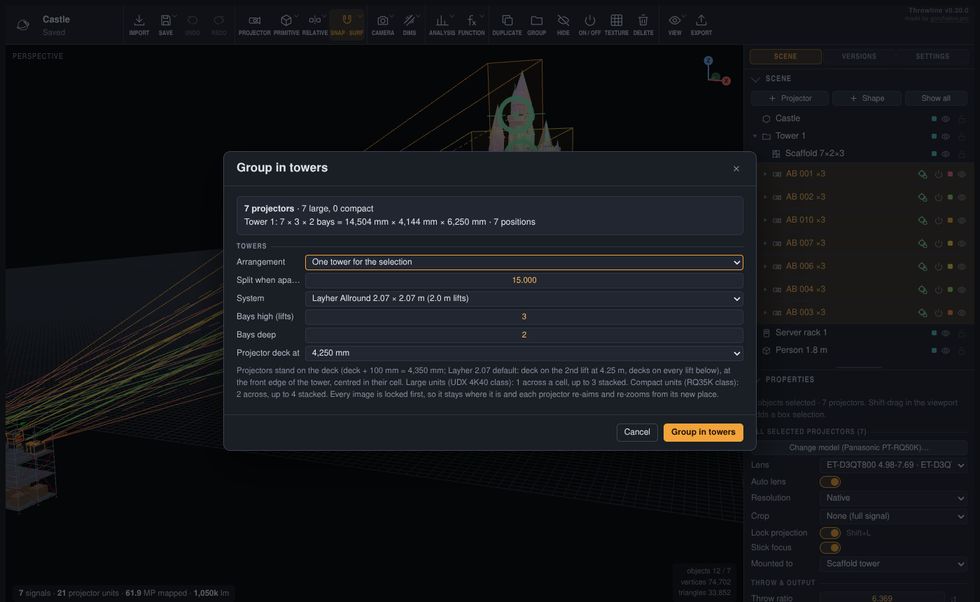
Groups the selected projectors on Layher 2.07 scaffold towers (deck 4.25 m).
Hide, power, labelsH / O / L
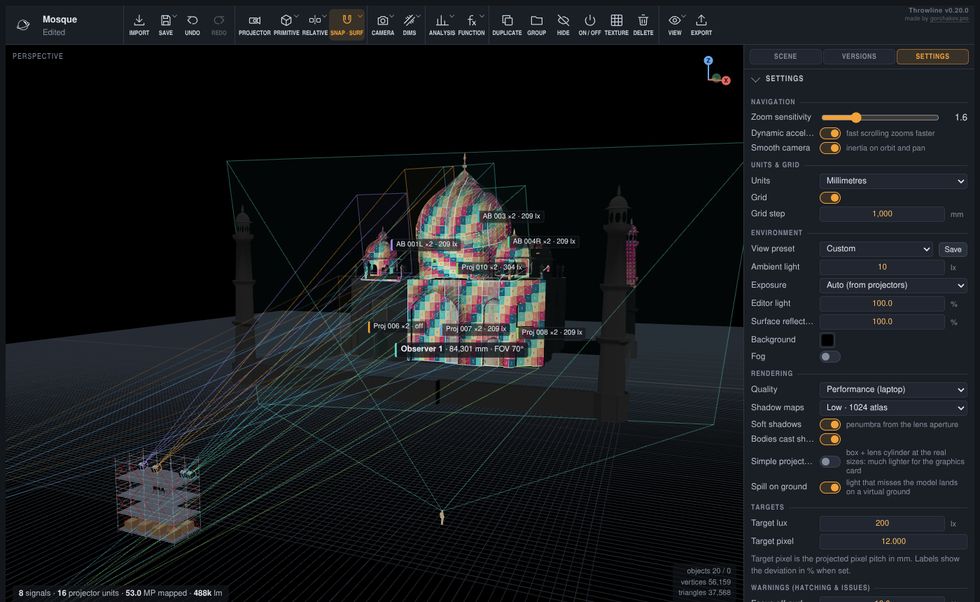
H hides the selection, O switches projectors on / off, L toggles labels, Shift+L locks the projection.
Illuminance (lux) and pixel size
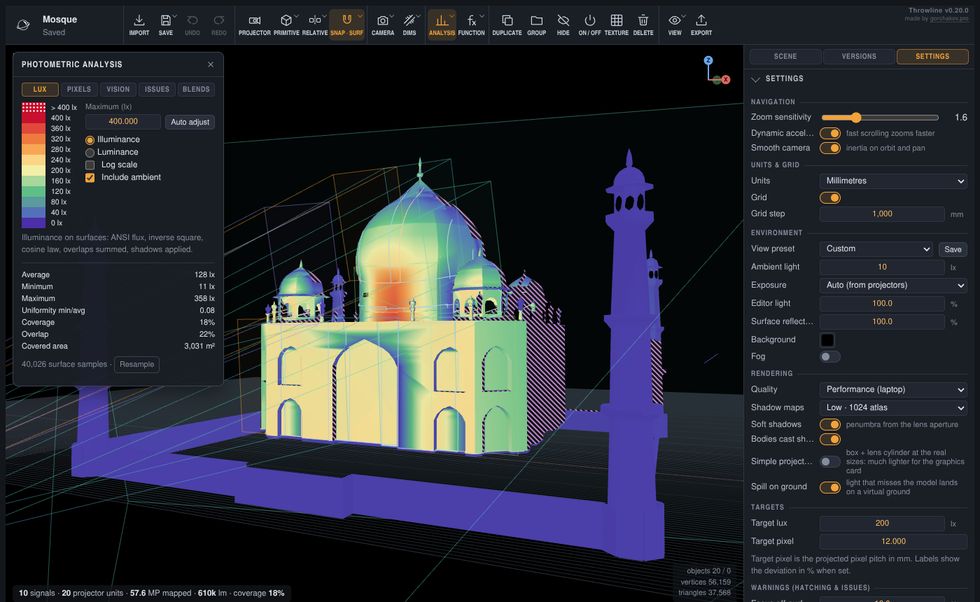
Lux = ANSI lumens × stack × brightness / (image area at unit distance × depth²), measured normal to the beam, with a 90 % centre-to-edge falloff. The surface value with the cosine law is shown separately. Pixel size = image width / horizontal pixels.
Import modelsI
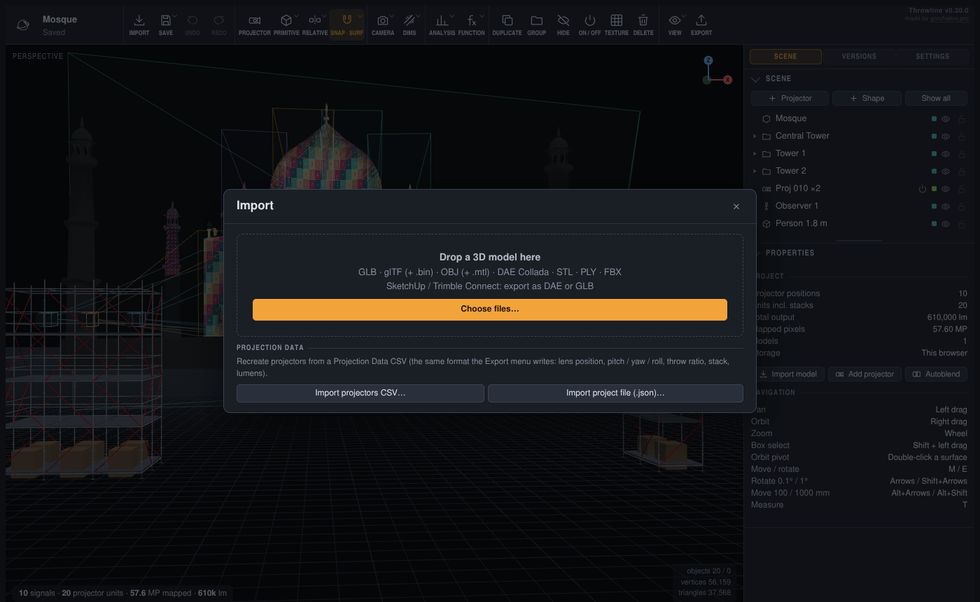
I opens the import dialog for venue models; imported meshes receive projection.
Lens and Auto lens
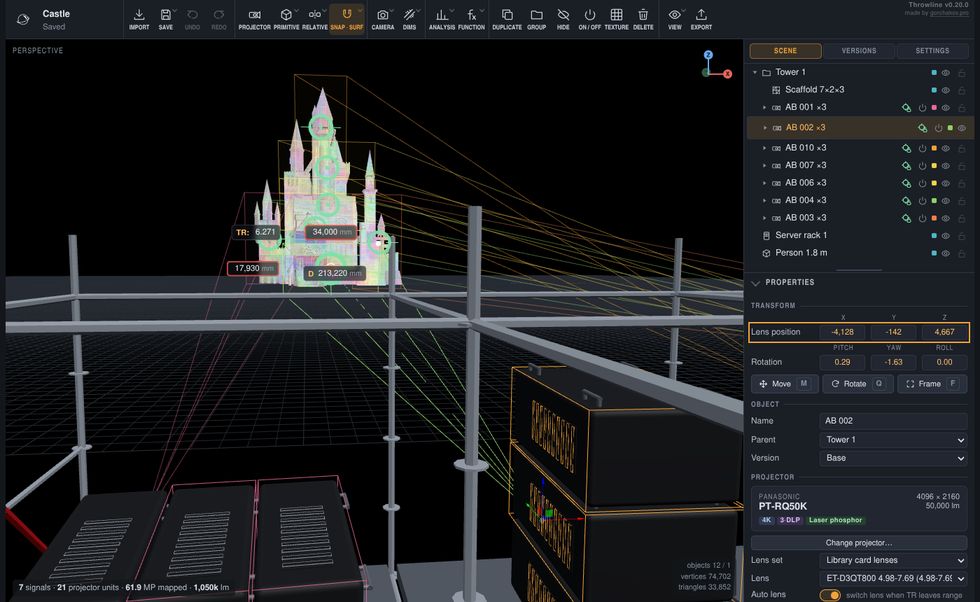
The Lens list in the projector panel shows the lenses of the chosen lens set (or the library card's lenses). With Auto lens on, typing a distance or size that leaves the current zoom range switches to the lens whose range holds the new throw ratio, preferring the middle of its range.
Lens presets (lens sets)
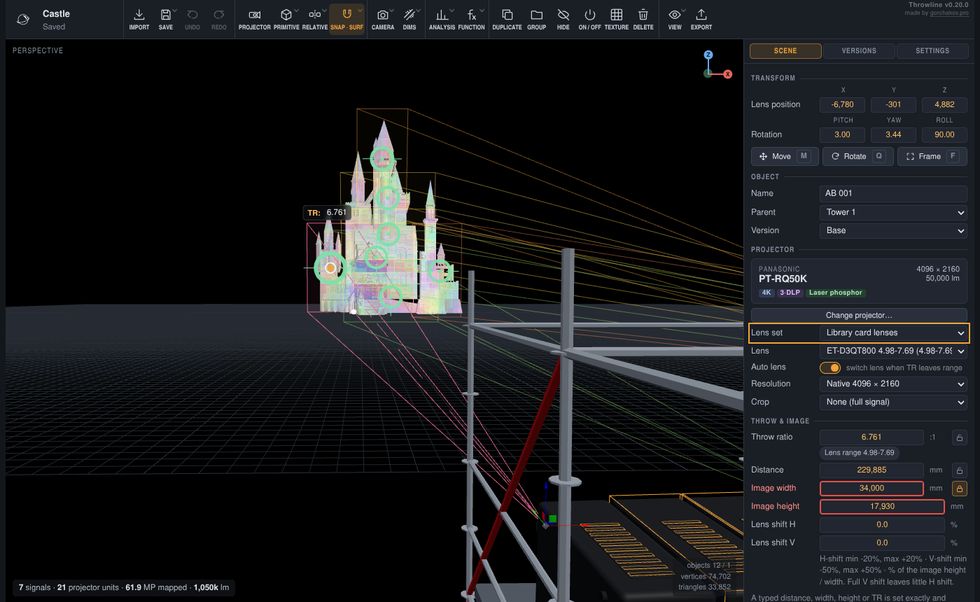
Every maker's official lens family: Barco TLD+, ILD, G / GC / GC++; Panasonic ET-D3L (D3), ET-C1, ET-DLE, ET-EM / ET-EL, ET-D3Q, ET-D75; Christie ILS (ILS1 / ILS4), CT legacy, HS, GS; Epson ELPL and ELPL legacy (G7000 / L1000 / L25000); Sony VPLL. When you create or edit a projector, Load lens set offers the same families plus the generic sets. Throw ratios come from the makers' lens guides. The set that fits the body is preselected; sets not listed for that body are marked "check fit". When the library card already has the same part number, the card's values (edited or chip-specific) win. The set is stored per projector and Auto lens only switches within it.
Lens shift
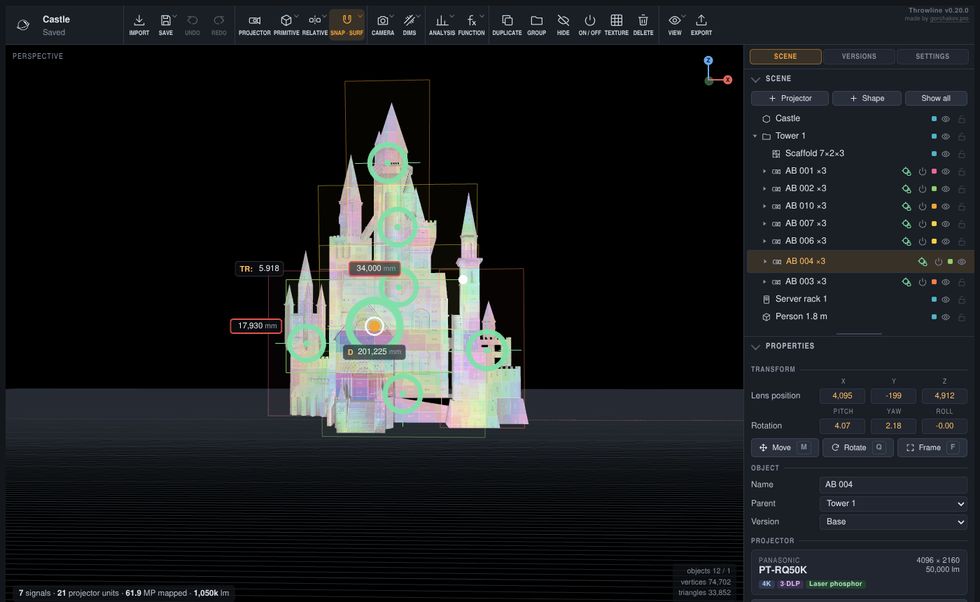
Shift is entered as each maker quotes it: Barco 100 % = half the image from the optical axis; Panasonic, Christie, Epson, Sony, Optoma, Digital Projection: % of image height (V) / width (H) from the centre. V and H share one round optical path, so at full vertical shift little horizontal shift is left (elliptical limit over the lens's own min / max).
Light and objects
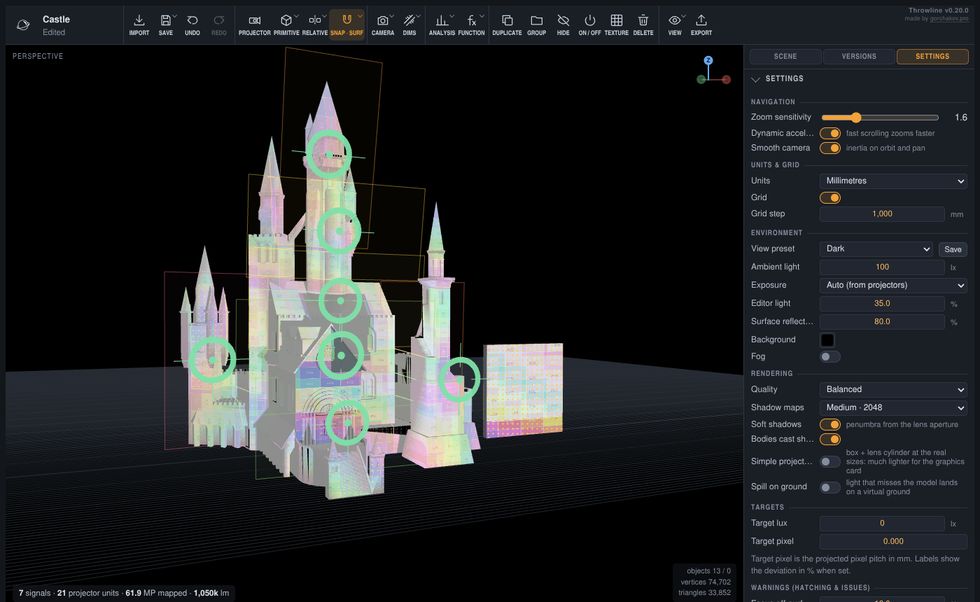
Light stops at every object in its way - it never passes through a wall, a slab or a panel. Only the side of a surface facing the projector is lit; with Lit both sides on, a thin shell shows the light on both faces. The shadow test is offset along each surface towards the light, so thin parts right in front of a surface still block it.
Linear array+ / -
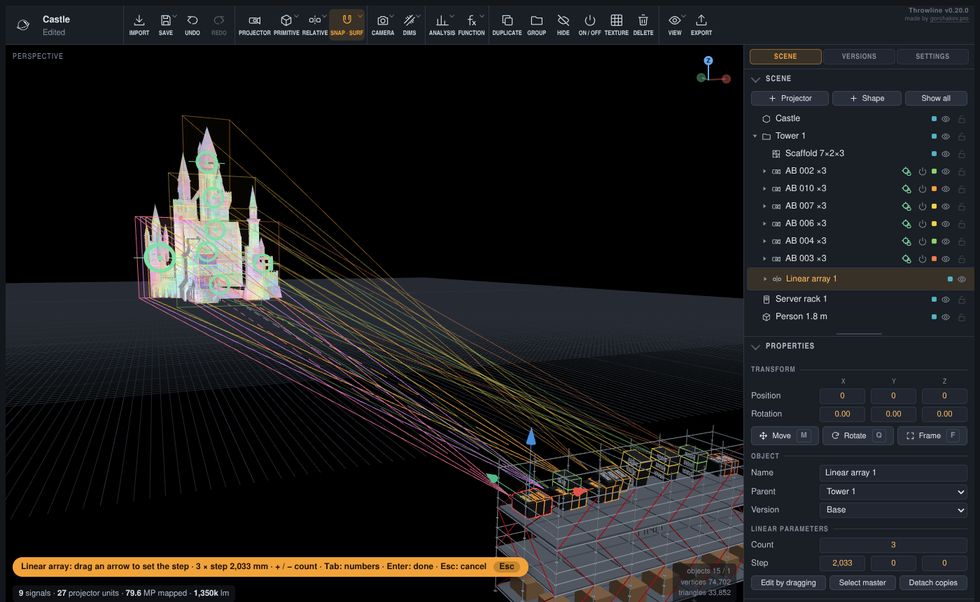
Relative → Linear array. Drag an axis arrow (red X, green Y, blue Z) to set the step; it snaps to multiples of the master size and to other objects. + / - change the count, Tab opens the numbers, Enter finishes, Esc cancels a new array.
Made with Spill9
The Projection Study carries a small line "made with Spill9" with the version it was made in, at the foot of the disclaimer box (Classic), in the footer (Blueprint, Showcase), linking to the Spill9 site. Switch it off in Projection Study → Pages → Made with Spill9.
Mirror / FlipY
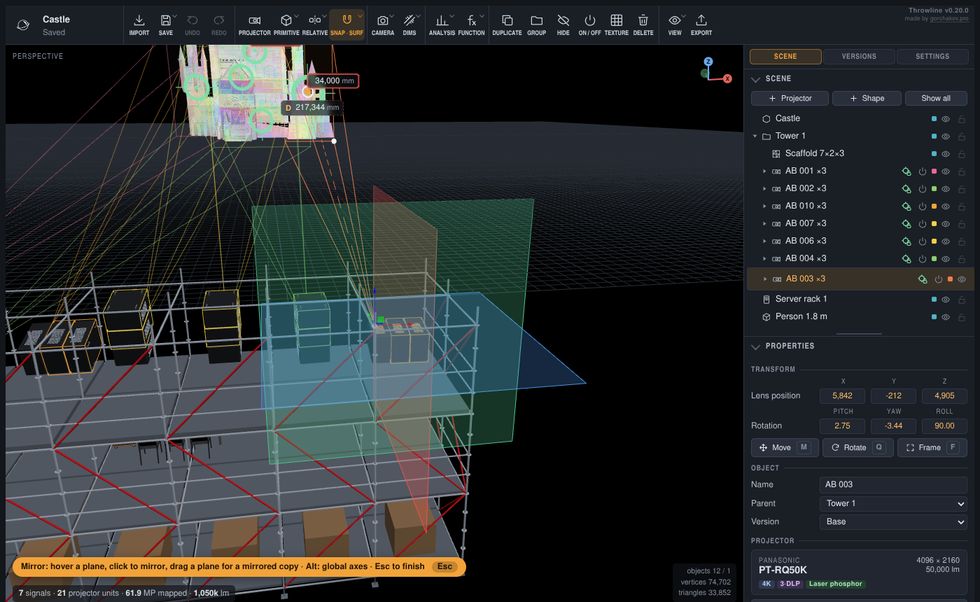
Relative → Mirror / Flip (first item) or Y. Small red / green / blue planes appear around the selected object. Click a plane to flip the object in place; drag a plane to make a mirrored copy at the drop point. The copy snaps to the centre, the object's faces and other objects' vertices (10 mm steps, Shift 1 mm) and shows the distance.
Move, rotate, scaleM / Q / R
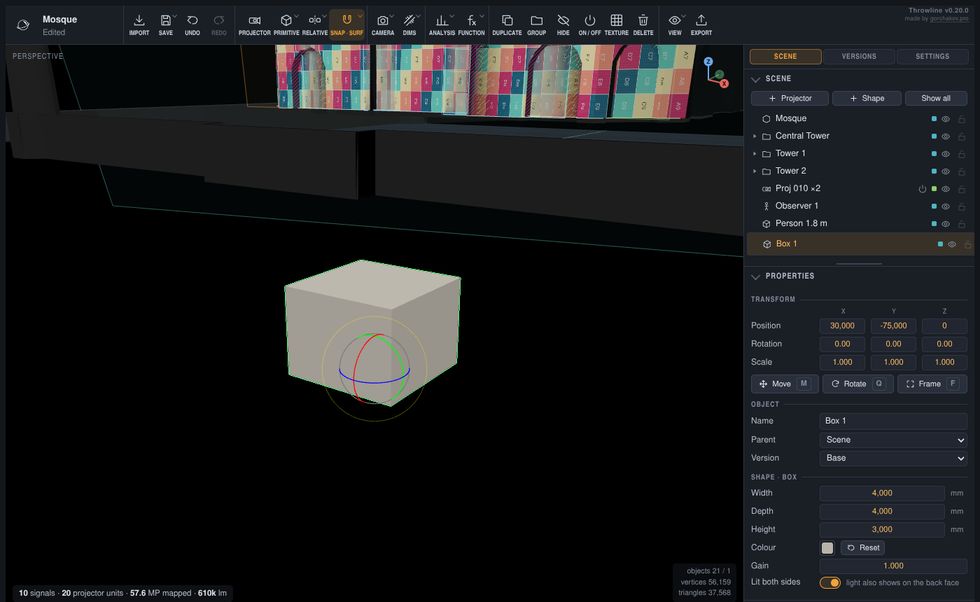
M (or W) shows the move gizmo, Q (or E) the rotate gizmo, R scale (not for projectors). Click a gizmo arrow to type a move: +2000 / -1500 relative, 13500 or =-1500 absolute. Arrows rotate a projector 0.1° (Shift 1°); Option+Arrows move 100 mm (Shift 1000 mm).
NavelU
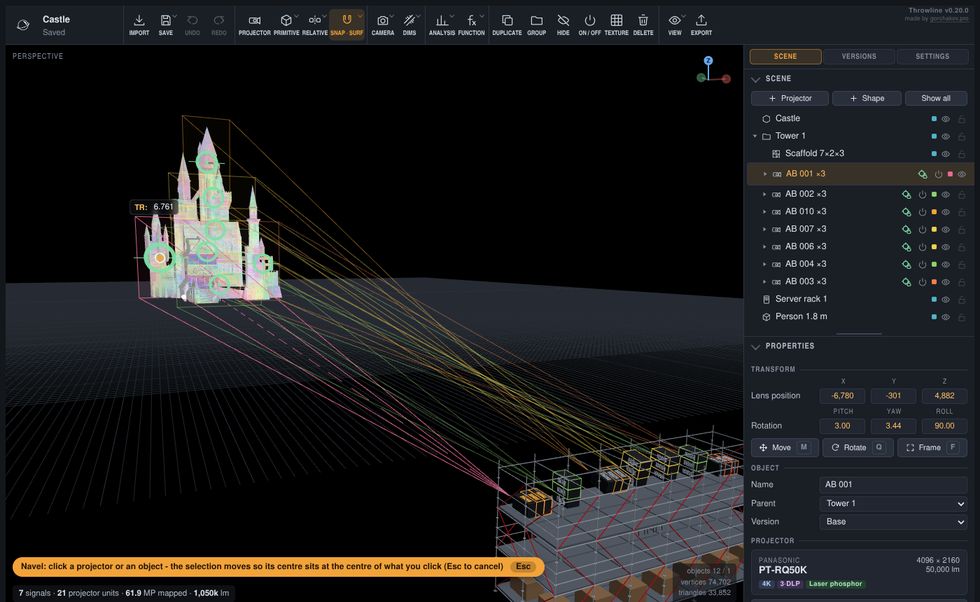
Snap → Navel, right-click → Navel, or U. Works on any pair: projector → object, object → projector, object → object, projector → projector. Select what should move, press U and click the target: the selection moves so its centre sits at the centre of the target. The centre of a projector is its lens; of a dome or sphere the centre of the sphere its surface lies on (found by a sphere fit, ignoring doors and base rings); of other shapes the centre of their box; in an imported venue the clicked part is used. Several selected items move together and keep their spacing.
No lens warning
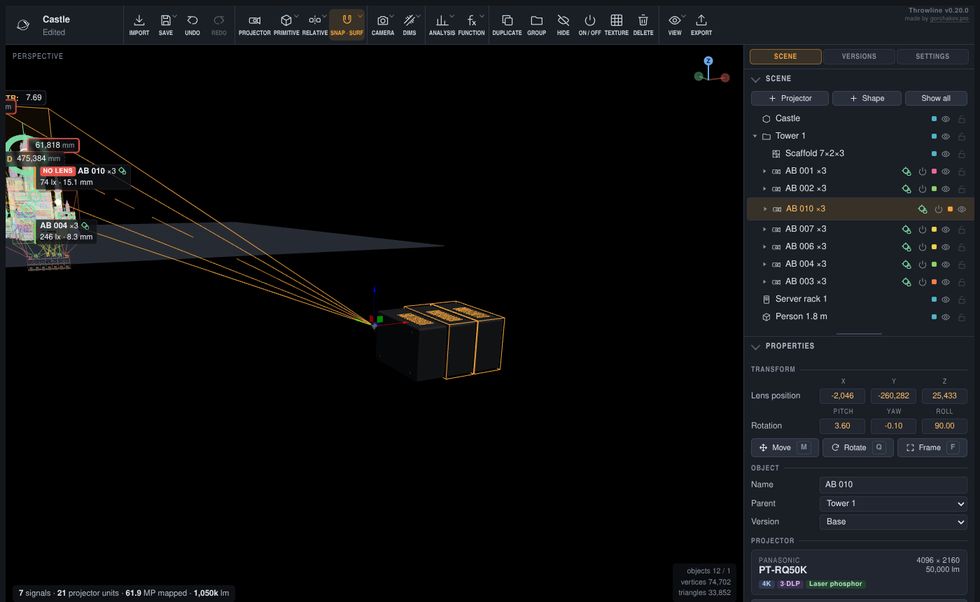
When a projector with a locked image size or a locked projection moves so far (or so close) that no lens of its set reaches the needed throw ratio, a notice names the range the set covers, the label shows NO LENS and Issues lists it. The nearest lens is kept at its end stop, so the image grows or shrinks until you move back, change the lens set or unlock the size.
Observer view
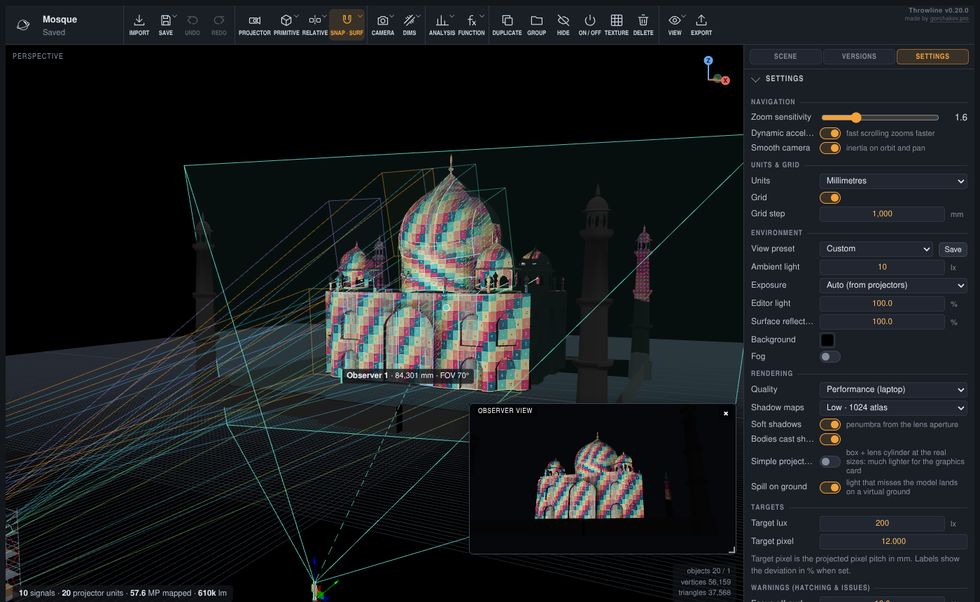
Primitive → Observer places a viewer; a picture-in-picture shows what that person sees. The observer is drawn as the 1.8 m person, eyes at the eye height; Primitive → Person 1.8 m is the same figure without the viewer function.
Orbit pivotRight drag
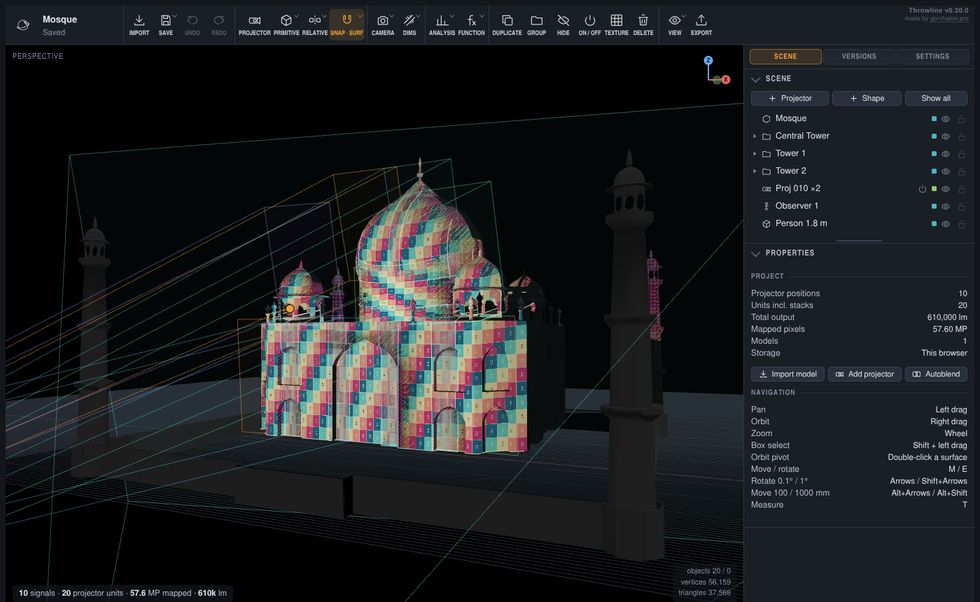
Right-drag orbits around the point under the cursor on any object, projectors included; over empty space it uses the floor or the last target. Double-click a surface to set the pivot.
PDF datasheet
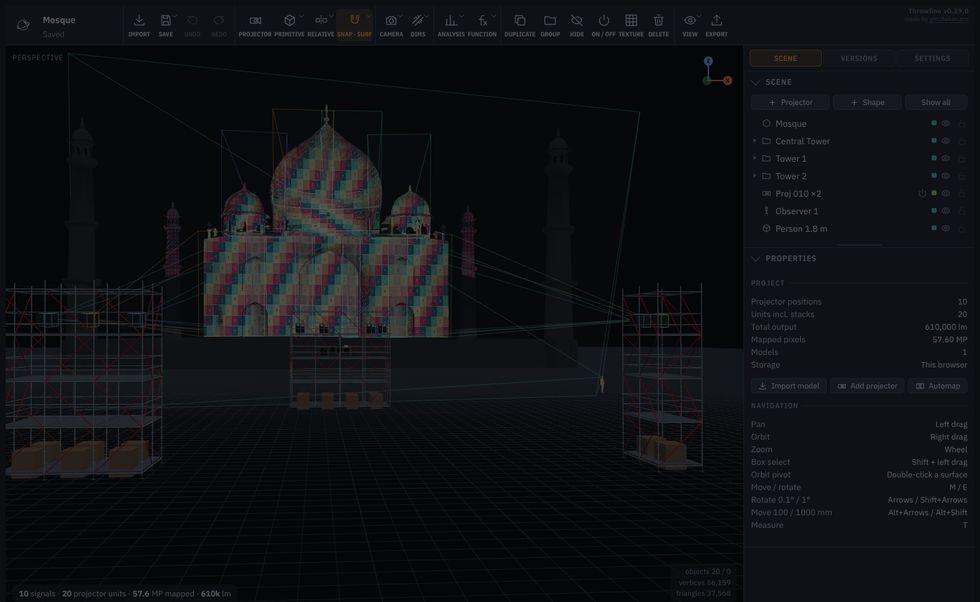
Library → Create custom (or Edit): drop the maker's PDF datasheet on the box at the top, or click it to choose the file. Brand, model, lumens (ISO / ANSI first), resolution, technology, light source, chip size, body size, weight, power, noise and the lens range are filled in; lenses that are in the maker's lens set come with their part numbers and shift. A scanned PDF has no text: paste the values in the box instead and press Extract values. Always check the numbers against the sheet before saving.
Performance recording
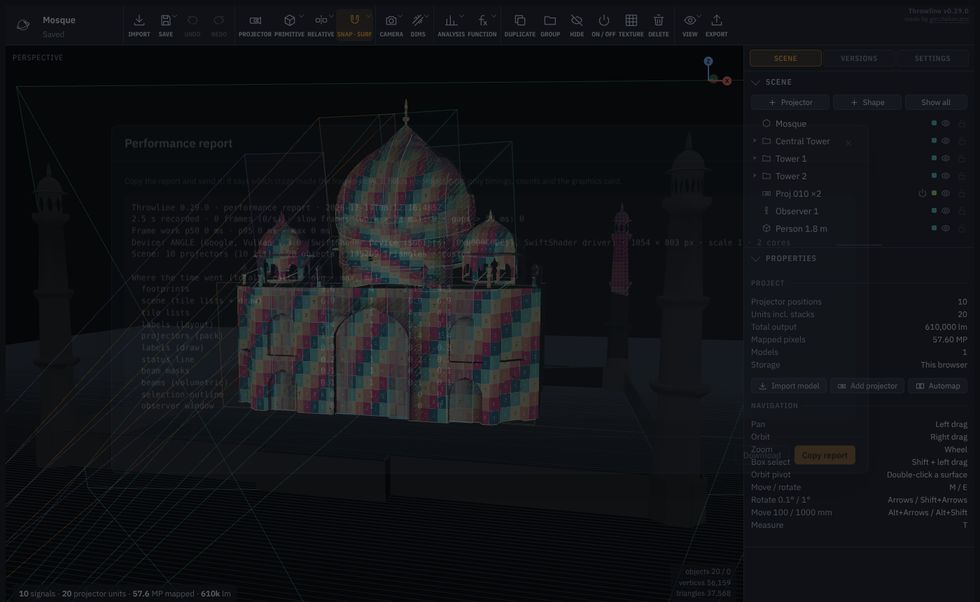
Settings → Performance → Record performance. Do what is slow (add with +, drag, orbit), then press Stop: the report shows the frames, the slow ones and where the time went - projectors, shadows, tile lists, scene, beams, bloom, labels, the scene tree, undo steps, saving. Copy it or download it and send it. Wait for the graphics card adds the GPU time (frames get a little slower while recording).
Person 1.8 m (scale figure)
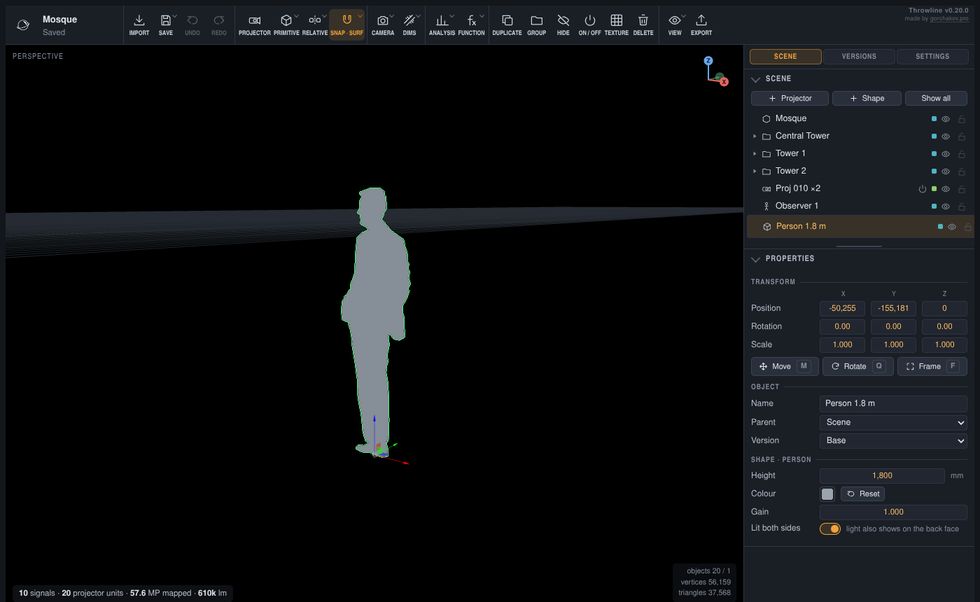
Every new project starts with a 1.8 m standing figure for scale. Add more from Primitive → Person 1.8 m; change Height in the panel for other sizes.
Polar array+ / -
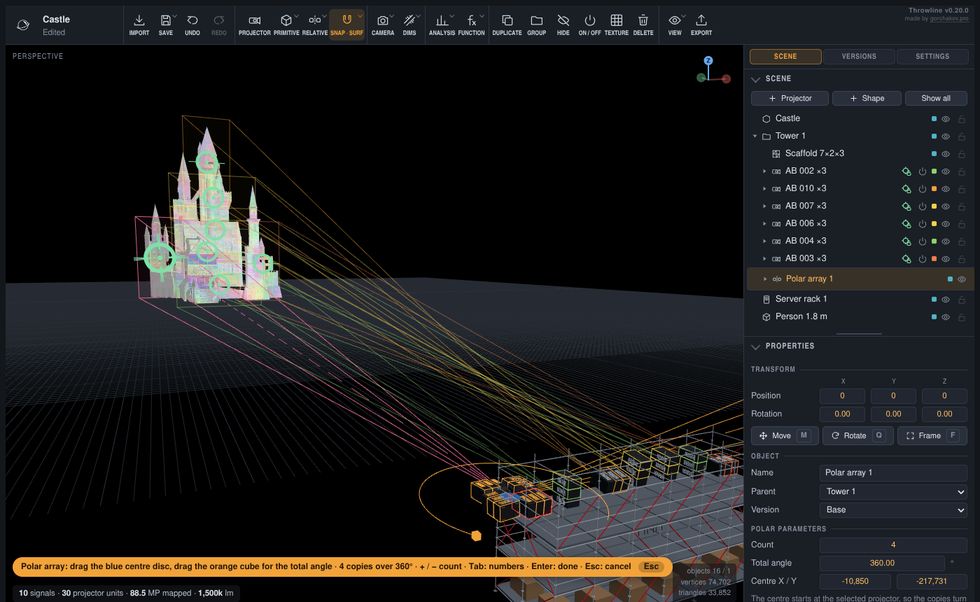
Relative → Polar array. Drag the blue disc to move the centre (snaps to objects), drag the orange cube on the ring for the total angle (5° steps, 360° = full circle). When the centre moves away from the master, a projector that looks at the centre is turned to look outward, so the copies shine away from the circle; rotate the master afterwards to aim them inward on purpose. Count, Total angle and Centre X / Y in the panel follow the handles, + / - and moving the Relative at once; the centre is shown in scene coordinates. Hold Shift while dragging the centre to keep it on the X or Y axis.
Primitives
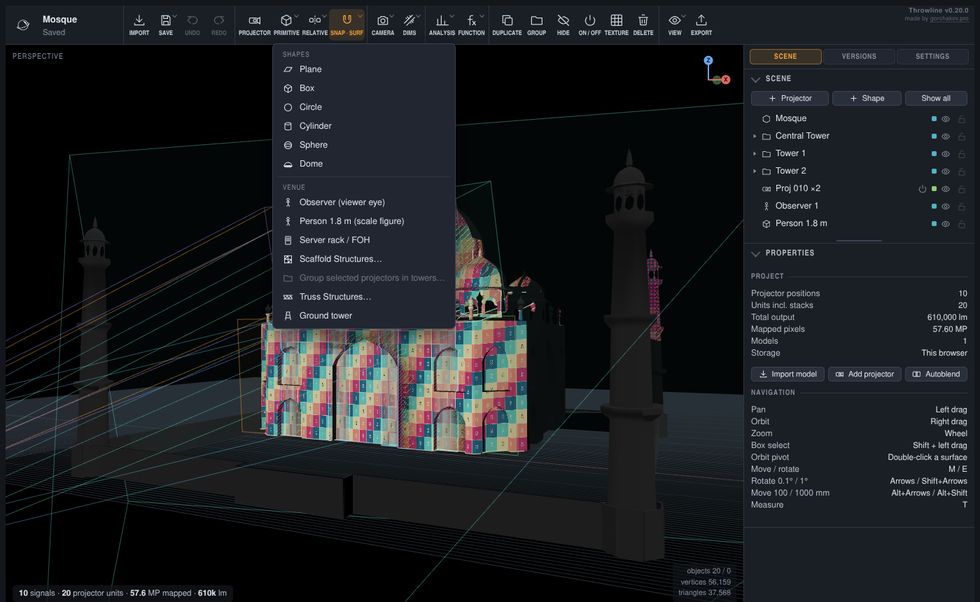
Primitive menu or right-click → Primitive adds boxes, planes, screens, cylinders, spheres, domes. Dimensions are edited in the panel or with the Option scale cubes.
Projection Study
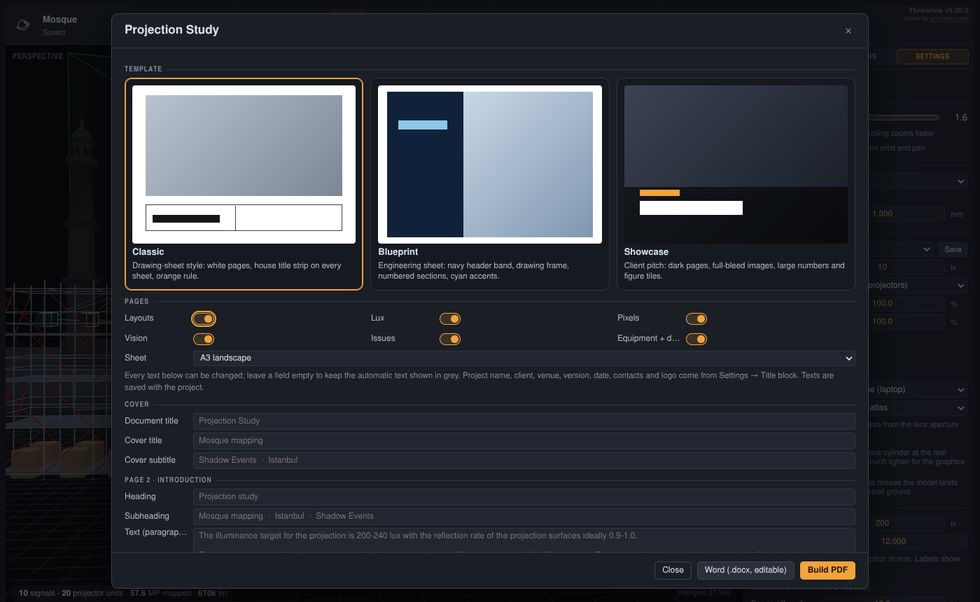
Export → Projection Study… opens the study window: pick a template (Classic drawing sheets with the house title strip, Blueprint engineering sheets with a navy header band and numbered sections, Showcase dark client pitch with full-bleed images and figure tiles), the pages to include and the sheet size, and edit every text - cover, page 2 heading and text, table titles, appendix titles, disclaimer. An empty field keeps the automatic text. Page 2 automatic text: the illuminance target comes from Settings → Targets → Target lux (empty = 150 lx, written as 150-180 lux), the reflection rate from Settings → Surface reflectance, the rest from the projectors, the analysis statistics and the media server in Settings → Equipment. Build PDF, or Word (.docx) to keep editing in Word / Pages / Google Docs. Word (.docx) is built from the very same drawing as the PDF, page for page: the drawing, colour scales and title strips as a picture behind each page, every screenshot, photo and logo as its own picture, and every text as an editable text box at its place - so it looks like the PDF and stays editable. Export → Media servers hands the layout on: a projector table for disguise Designer (copy the .txt to objects/Table in the project folder, then stage editor → actions → Import projectors from table) and a placement script for PIXERA (create the projectors with the same names, enable the API as JSON/TCP dl, run the script). Check the first projector in the media server after the import.
Projector label values
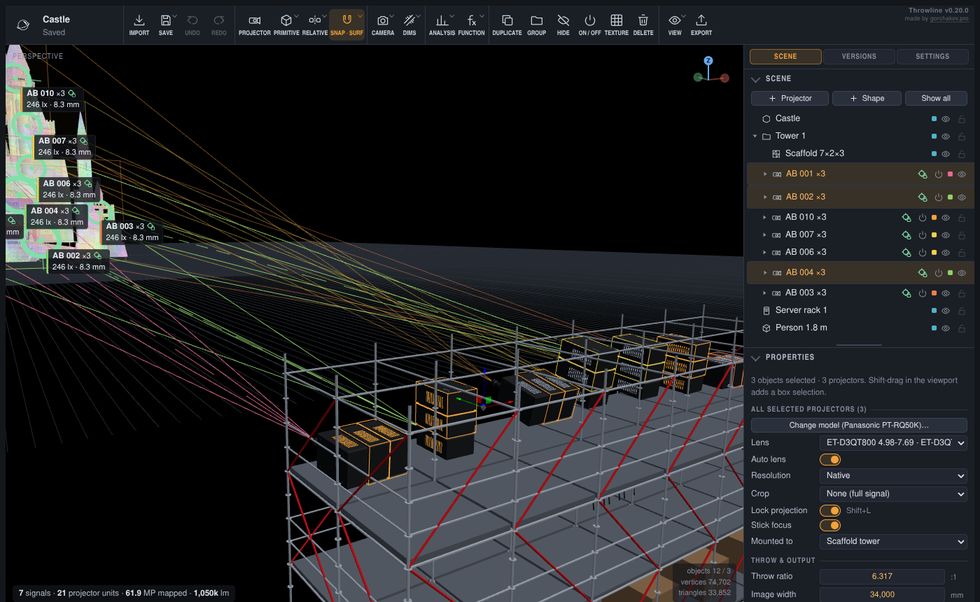
The label shows what the projector delivers at its throw: illuminance on a plane square to the beam and the pixel pitch on that plane. The throw is the focus distance for projectors with Focus lock or Projection lock (the focus follows the surface), otherwise the median depth of 25 rays over the central half of the image - so a centre ray that clips a nearby part does not change the figure, and projectors thrown the same way show the same values. Labels are re-measured whenever the scene changes. The project average pixel pitch is the plain average of the labels of the switched-on projectors; average stretch counts only the useful area (light landing within the grazing warning angle, Settings → Warnings).
Projector limit
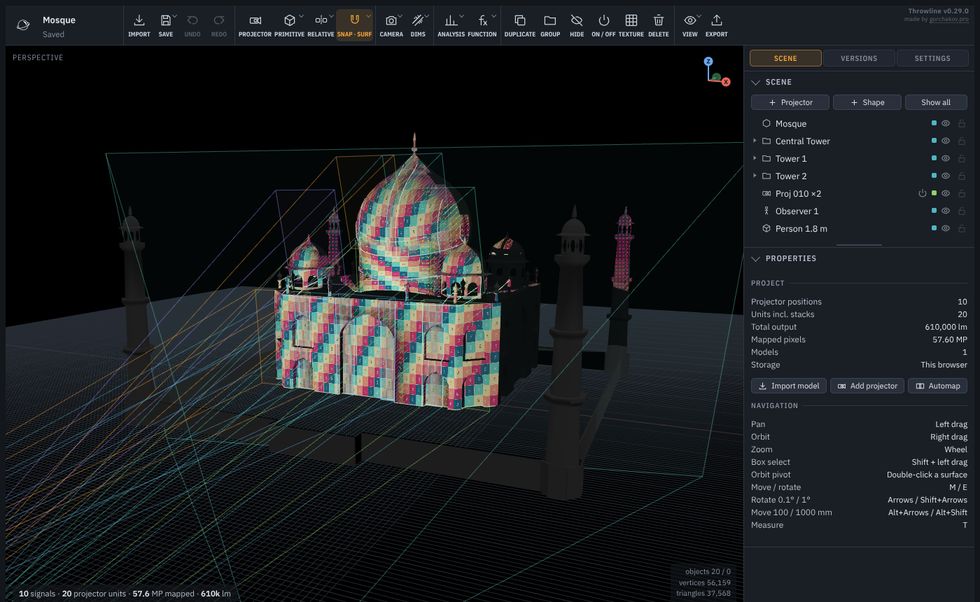
The view lights up to 128 projector positions at once. A stack (several projectors on one position) counts as one. Projectors beyond 128 stay in the project and the equipment list, but are not lit in the view.
Projector photos
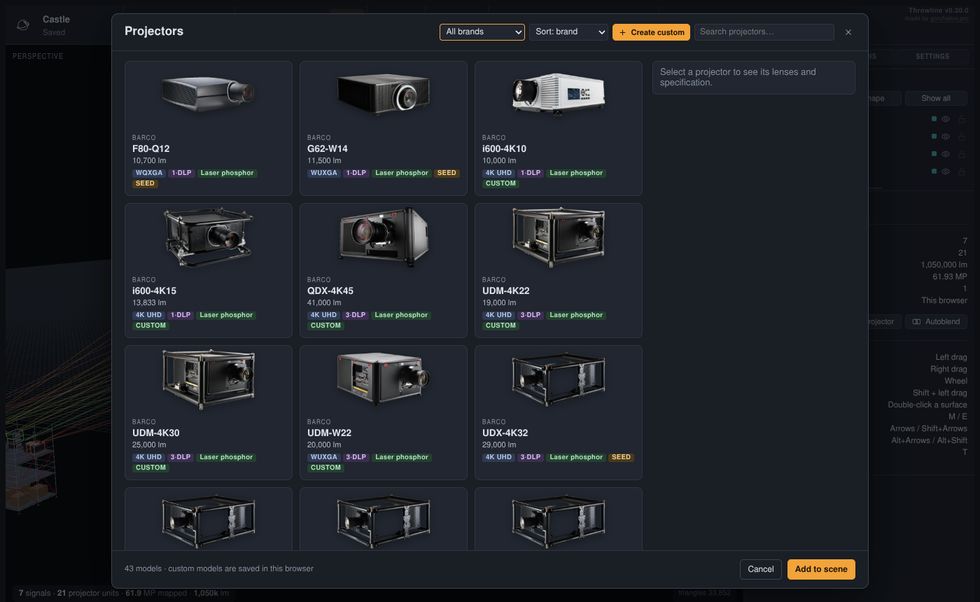
Library photos are cut out on a transparent background, in the library and in the Projection Study. An uploaded photo on a white or near-white backdrop is cut out automatically; a PNG with its own transparency is kept as it is.
Relative by numbersTab
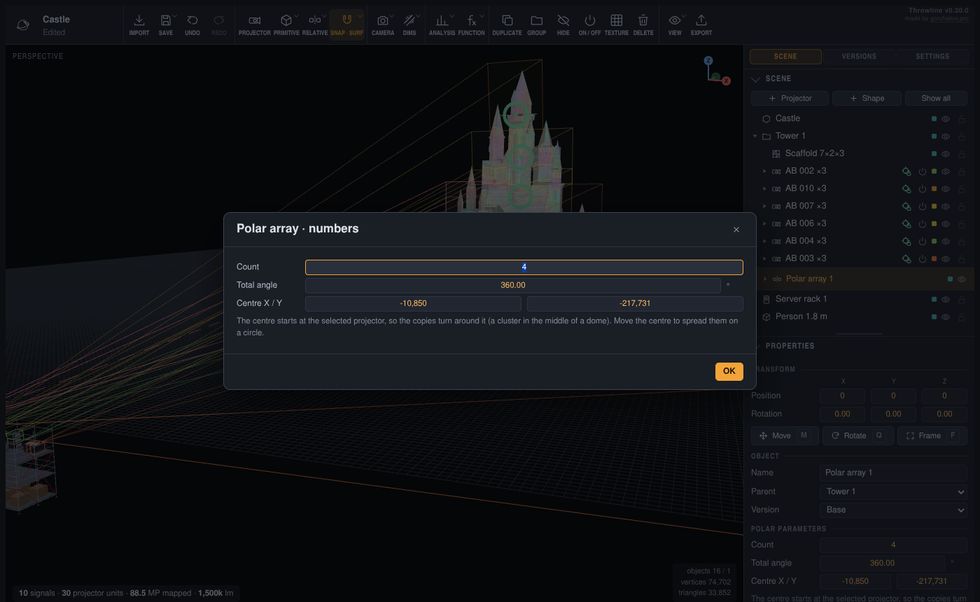
Relative → By numbers (bottom of the menu) edits the selected Relative or creates one from typed values. Inside a drag tool, Tab opens the same numbers. A projector that is already a master or a linked copy cannot get a second Relative: a notice names the Relative it belongs to.
Relative master
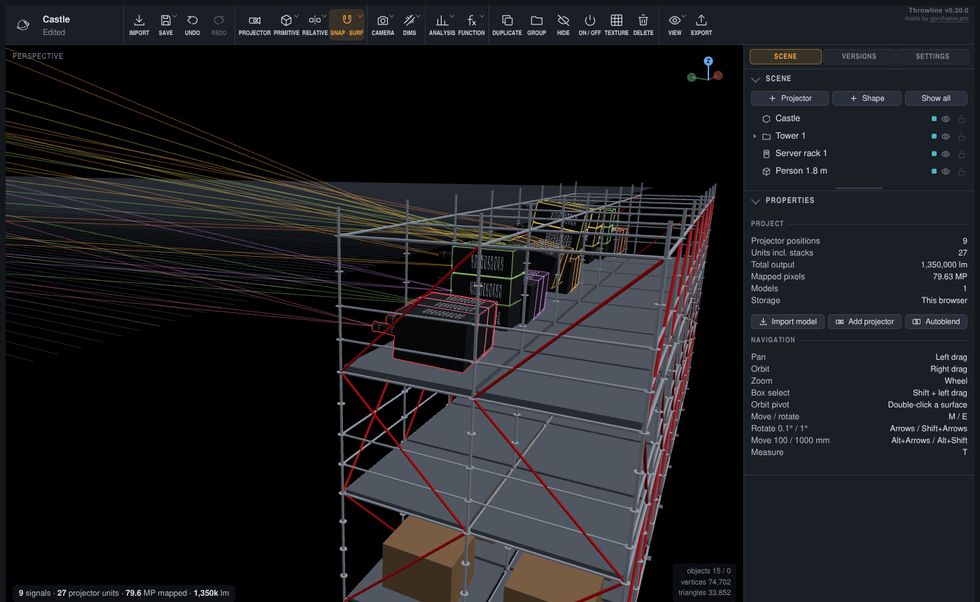
The master of a Relative (the original the copies follow) has a thin red outline on its body and a small red dot on a corner of its cone, so it stands out among its copies.
Resolution, signal and crop
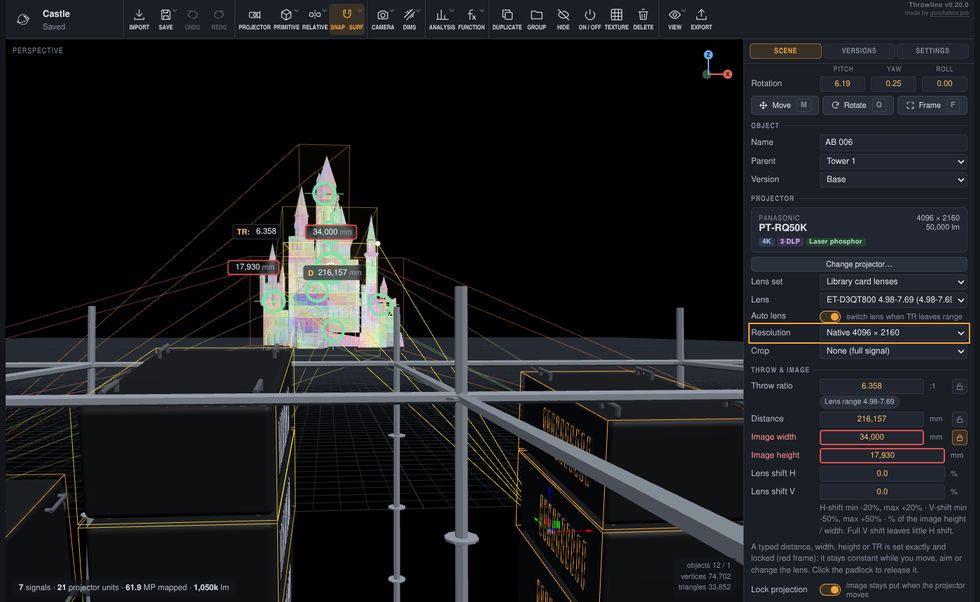
Resolution picks the input signal; a signal larger than the chip is scaled, a smaller one uses part of the chip (letterbox / pillarbox). Crop masks the image to an aspect ratio.
Sample projects
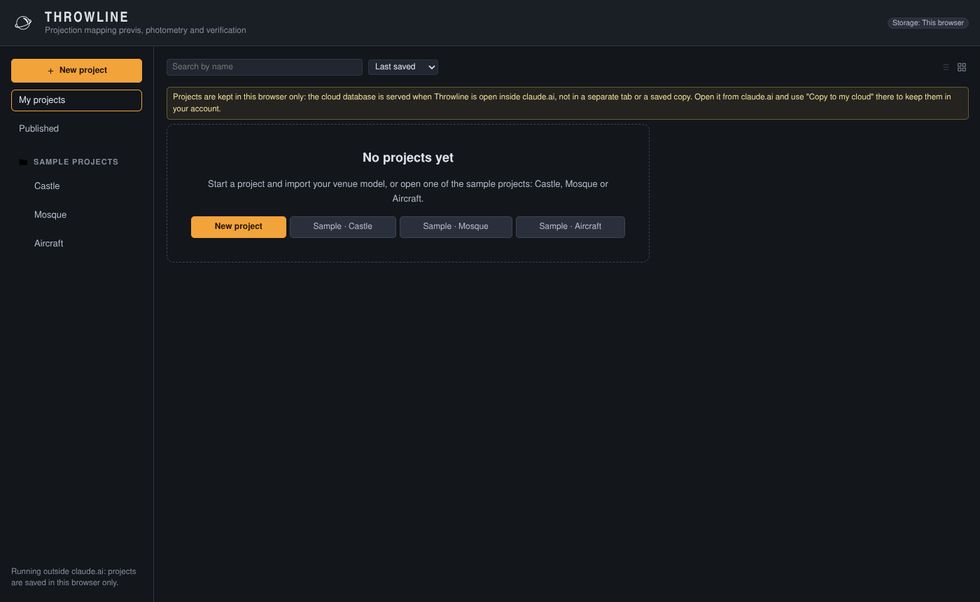
The Sample projects folder on the dashboard opens Castle, Mosque or Aircraft as a new project in your list: the venue model imported and optimised, the full projector rig with towers, truss, server racks and observers, and a 1.8 m person for scale.
Scaffold Structures
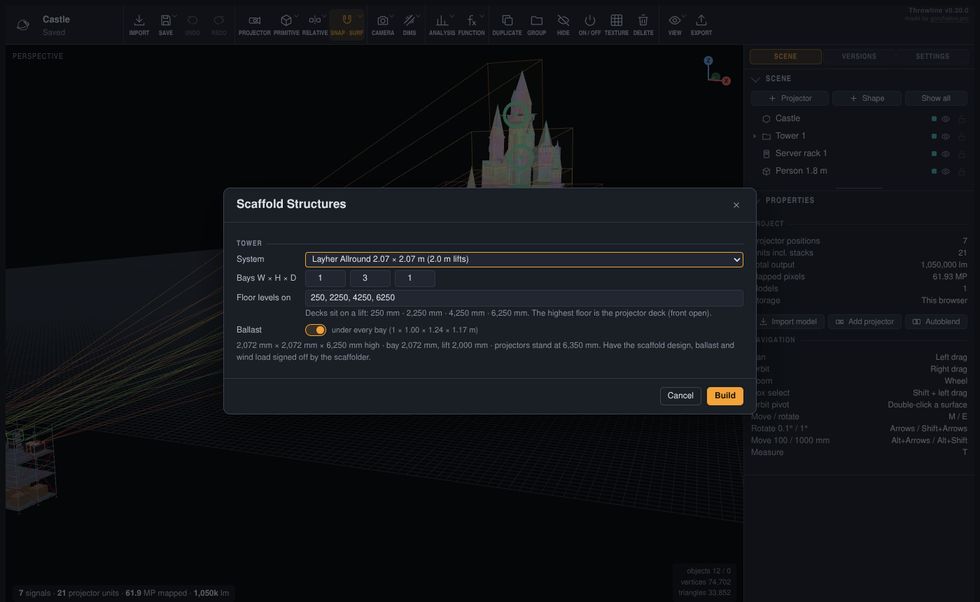
Primitive → Scaffold Structures: Layher 2.07 or 1.57 bays (W × H × D), levels every lift by default, jack 250 mm and ballast per bay.
Scale handlesOption held
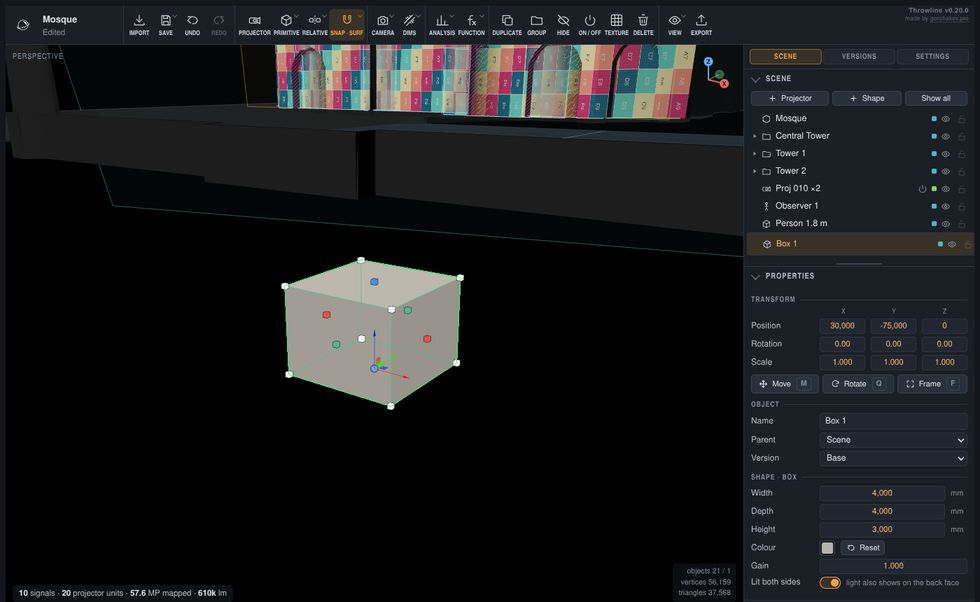
Hold Option (Alt) with an object selected: small cubes appear on corners (proportional) and faces (one side). Dragging a primitive's cube changes its real dimensions (width, depth, height, radius…) and the panel fields follow.
Scene list buttons
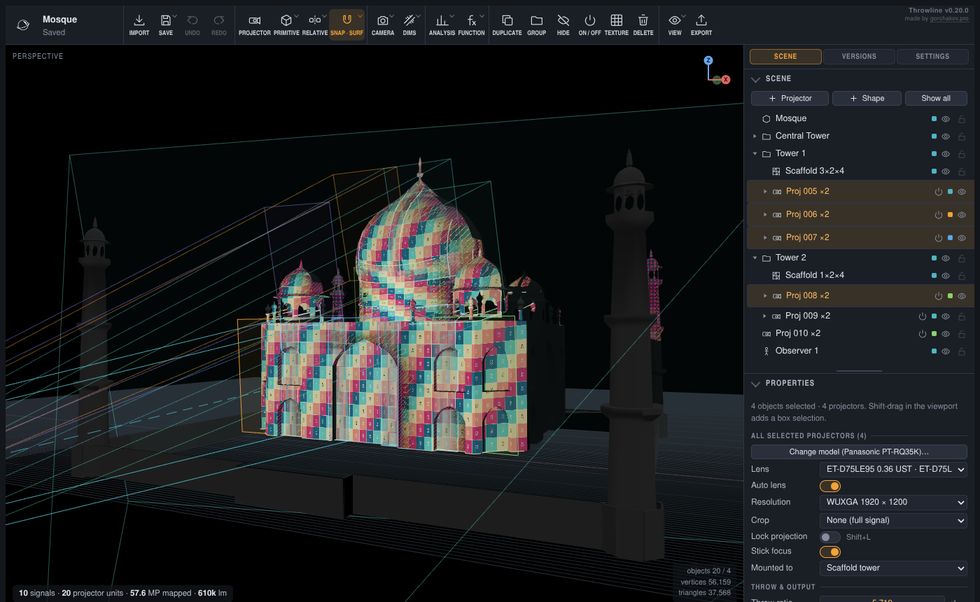
The power, eye and lock buttons of a row act on the whole selection when that row is selected with others: switch twenty selected projectors off with one click. The list keeps its scroll position whatever you click.
Scene panel
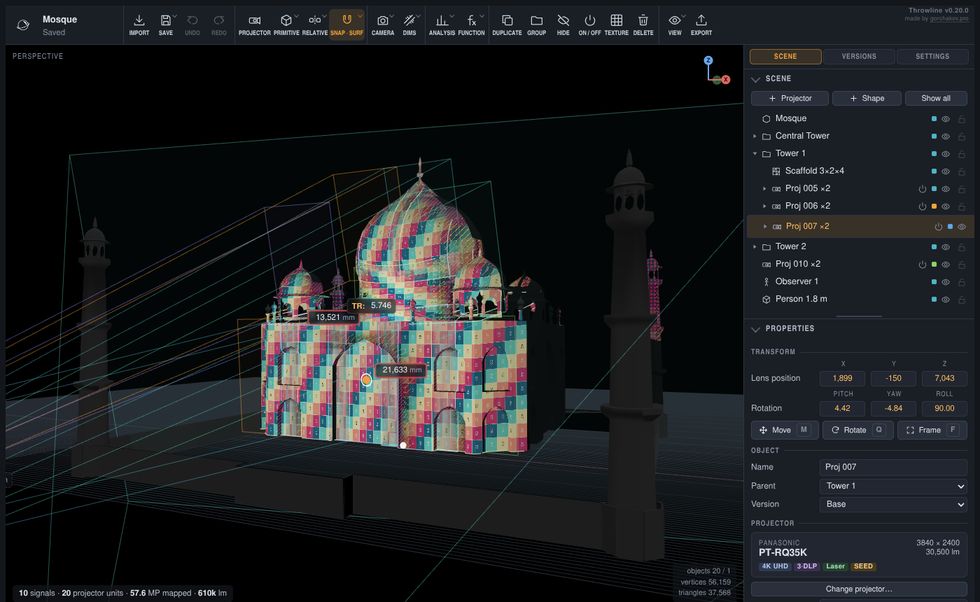
The right panel has three tabs: Scene, Versions and Settings - one at a time. Scene shows the scene list with the properties of the selection under it: Transform first, then Object, then the projector, shape or model settings. Drag the bottom edge of the list to set its height.
Server rack / FOH
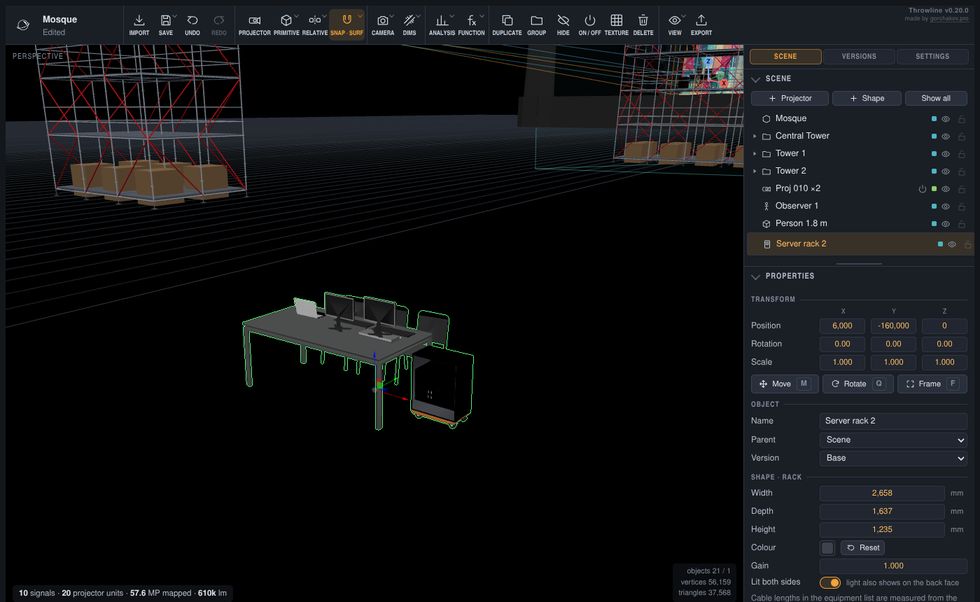
Adds the FOH position (2658 × 1637 × 1235 mm); cable lengths in the study are measured from it.
Shift: move on one axisShift
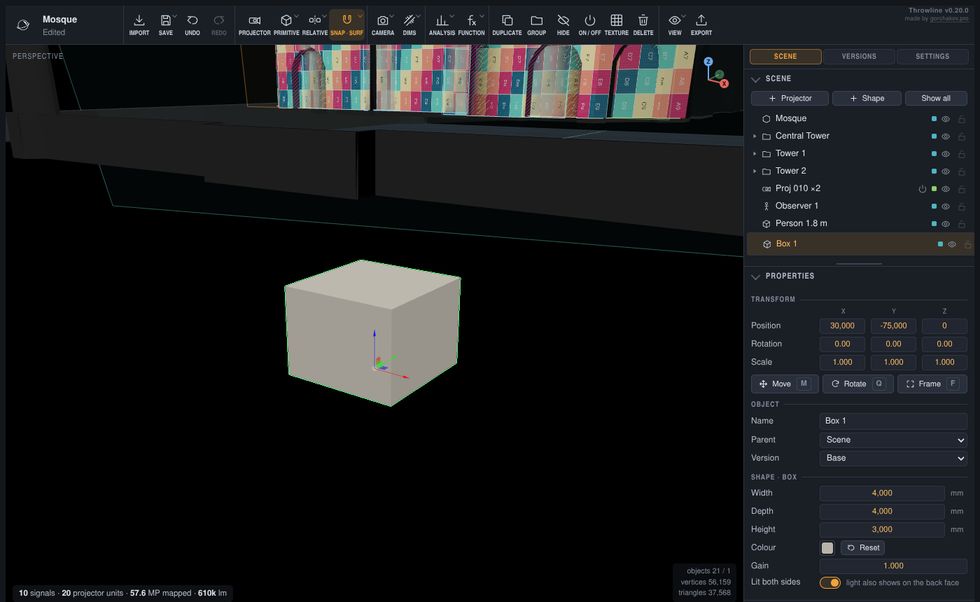
Hold Shift while dragging the free centre or a plane of the move gizmo, the focus point of a projector or an observer, or the centre of a polar array: the move stays parallel to one axis - the one moved most. Release Shift to move freely again.
Simple projector bodies
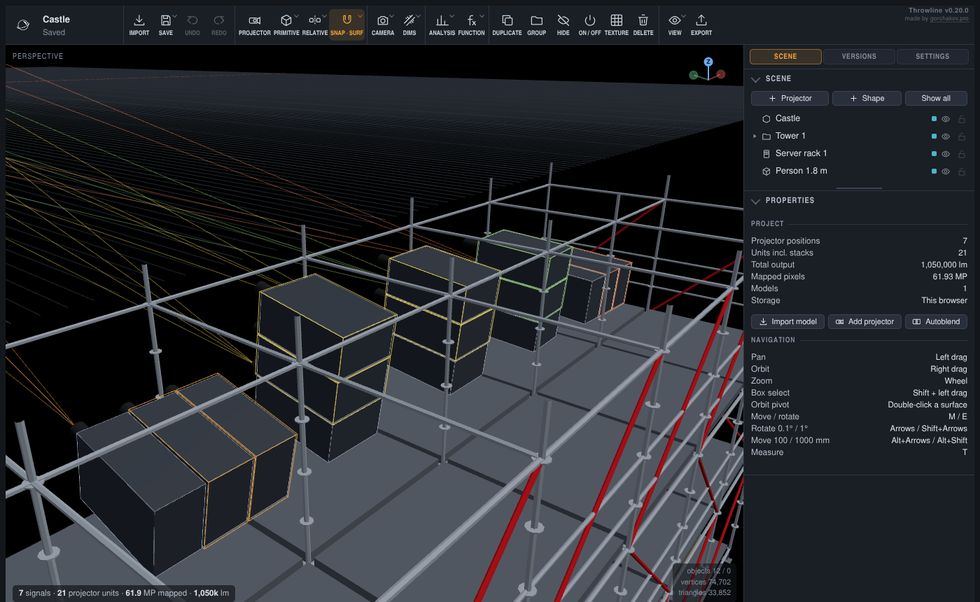
Settings → Rendering → Simple projector bodies draws each projector as a plain box at its body size from the library with a cylinder for the lens at its own diameter and length - a few dozen triangles instead of thousands, so large rigs stay smooth on a laptop. The setting is kept per browser; it changes nothing in the calculations.
Smooth editing (preview while dragging)
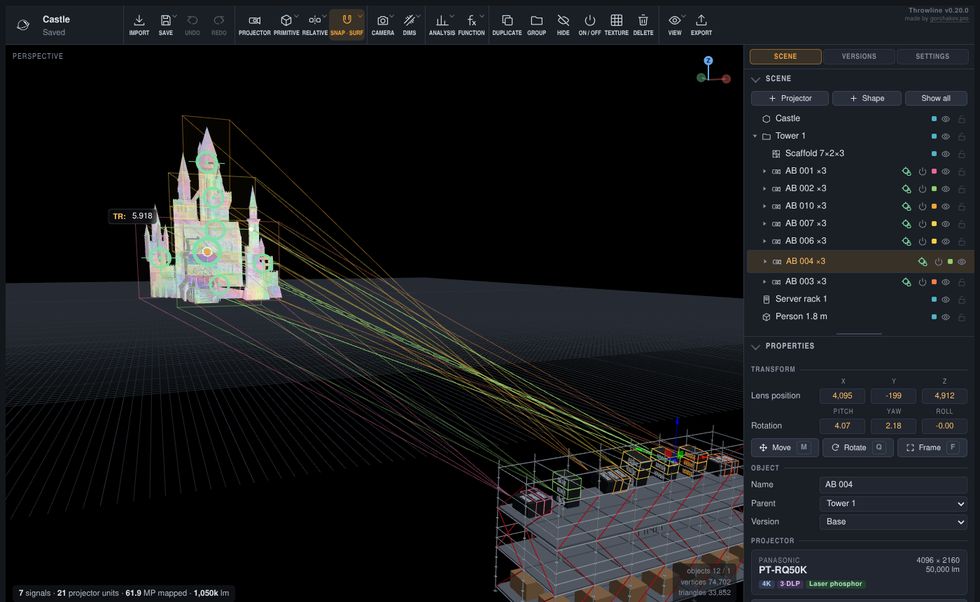
While you drag a projector, a handle, a shape or a Relative, the light is drawn as a quick preview at a lower resolution with hard shadows; labels and footprints wait for the release. Only what changed is redone: the moved projectors, and the beams that reach a moved shape. Shadow maps are drawn a few per frame, so adding many projectors or loading a big model never freezes the view; a projector added a moment ago shows its shadows a frame or two later. Orbiting and zooming always stay at full quality. Autosave and the dashboard picture wait until your hands are off the mouse.
Snap to vertex, edge or surface
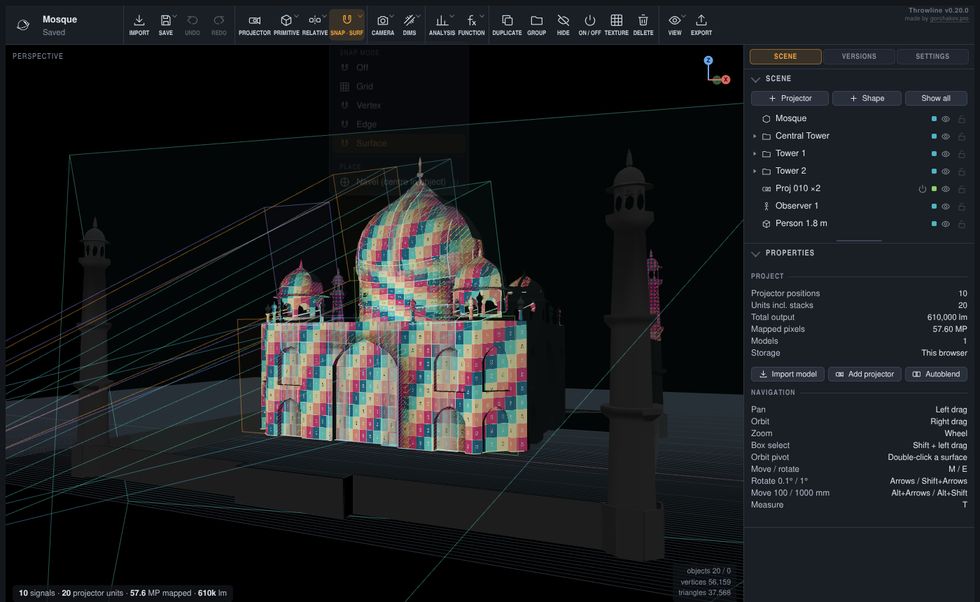
Snap → Vertex / Edge: while you drag, the object's own corners, bottom centre and origin look for the nearest vertex or edge point within about 18 px on screen, and the closest pair lands exactly on each other. Every visible object is a target: models, shapes, projector bodies, scaffold towers, truss, racks and the FOH. Snap → Surface: a dragged object drops onto (or steps up onto) the highest floor under its footprint - its legs stand on the ground, a roof or a scaffold deck (deck levels come from the scaffold itself, handrails do not count). Projectors with Surface snap sit on the surface under the body. Snapping works with the axis arrows, the planes and the free centre of the move gizmo, for one item or a whole selection.
Speed and big scenes
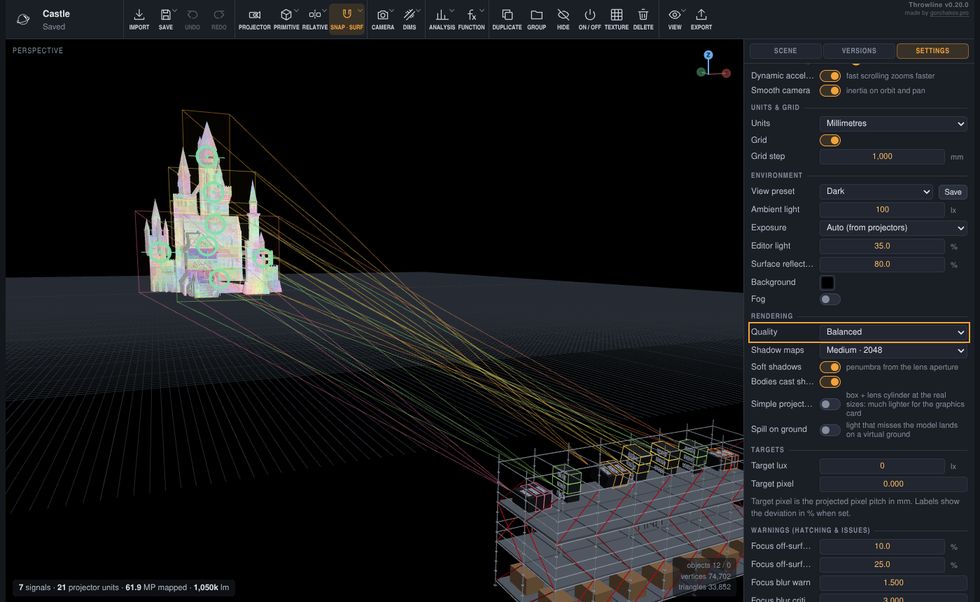
Spill9 redraws only what changed: a moved projector redraws its own shadow map, label and outline; a moved shape redraws the beams that reach it; a Relative copy that is added or removed redraws that copy. Shadow maps are spread over a few frames, so even 50 projectors on a heavy venue keep the view moving. Autosave and the dashboard picture never run while you drag or orbit. When a laptop still struggles, in Settings → Rendering: Quality Performance (renders at screen pixels, not Retina), Shadow maps Low, Soft shadows off (hard edges, about twice as fast on big screens) and Simple projector bodies on. A venue model above about 1 million triangles is worth reducing at import (Simplify to). Light always stops at objects; there is no switch for that. On a Spill9 server the ray-tracing trees of heavy models are built in background workers, so the window stays responsive while a big venue opens; models are stored once per account and as compact binary files.
Symmetry
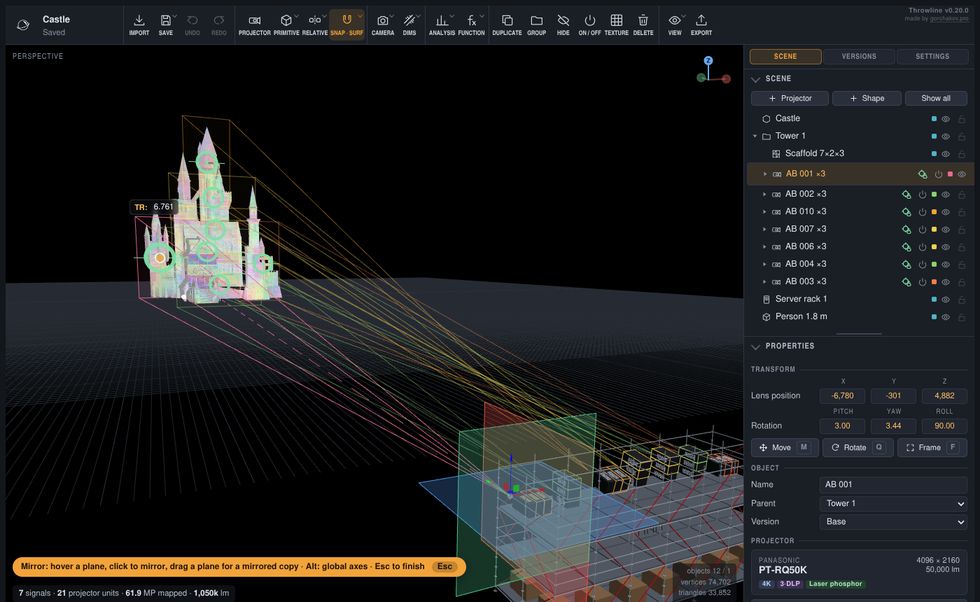
Relative → Symmetry makes a linked mirrored copy. Drag the red (X) or green (Y) plane; hover another object's vertex, edge or edge midpoint and the plane jumps exactly there, so the copy lands on the far side at the same distance. Without a snap the plane snaps to the scene centre, the master's faces and other objects' box corners, face centres and edge midpoints.
Textures and videos
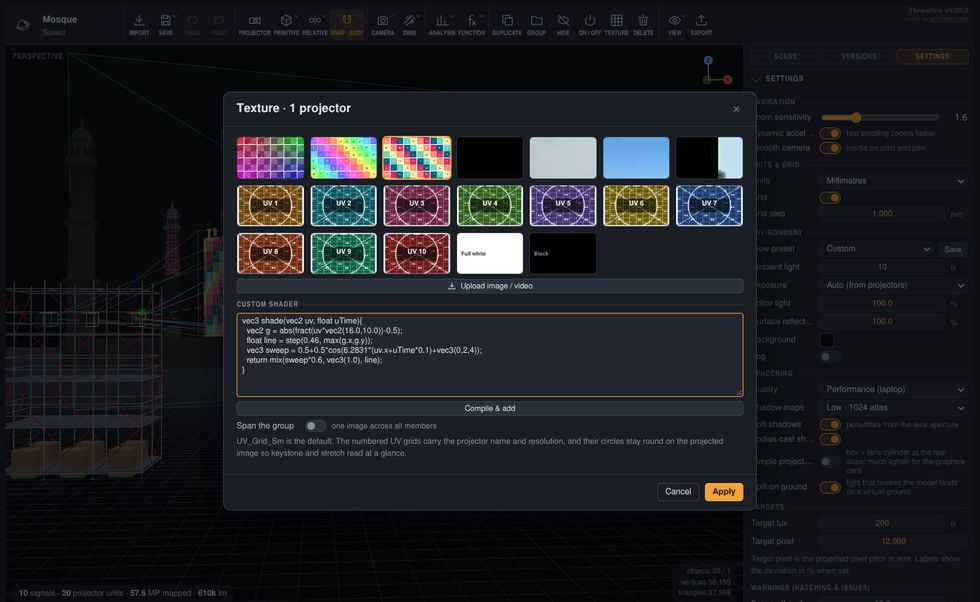
Each projector shows a texture: test patterns, images or the built-in videos (they play).
Throw ratio, distance and image size
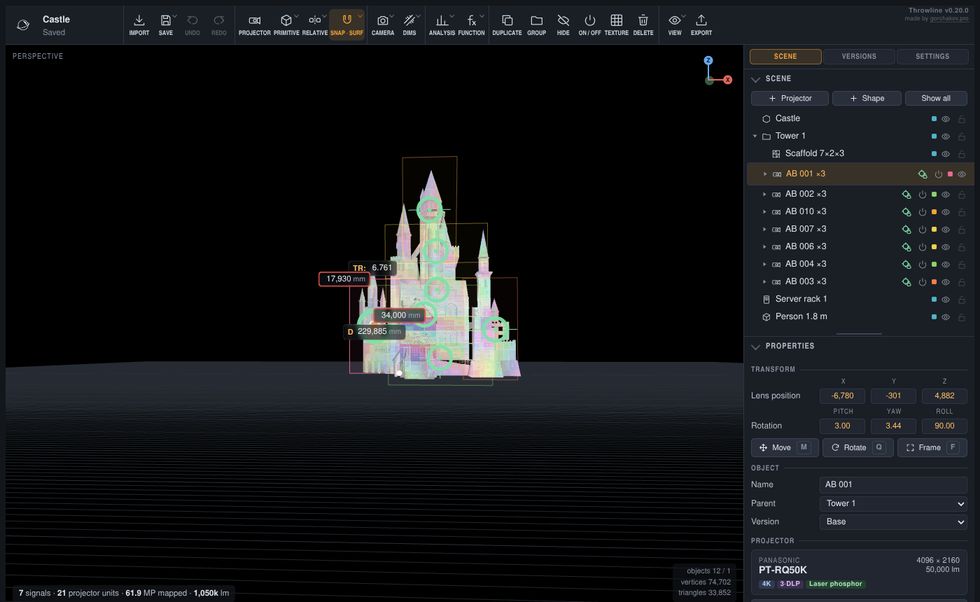
W = D / TR. The boxes on the projection rectangle and on the dashed focus line take typed values: width, height, throw ratio, distance. A typed value is set exactly and locked (red frame); at most two values stay locked and the third is calculated. Values outside the lens range are kept and a warning shows the lens limit. Click a locked box's value again or type a new one to change it.
Truss Structures
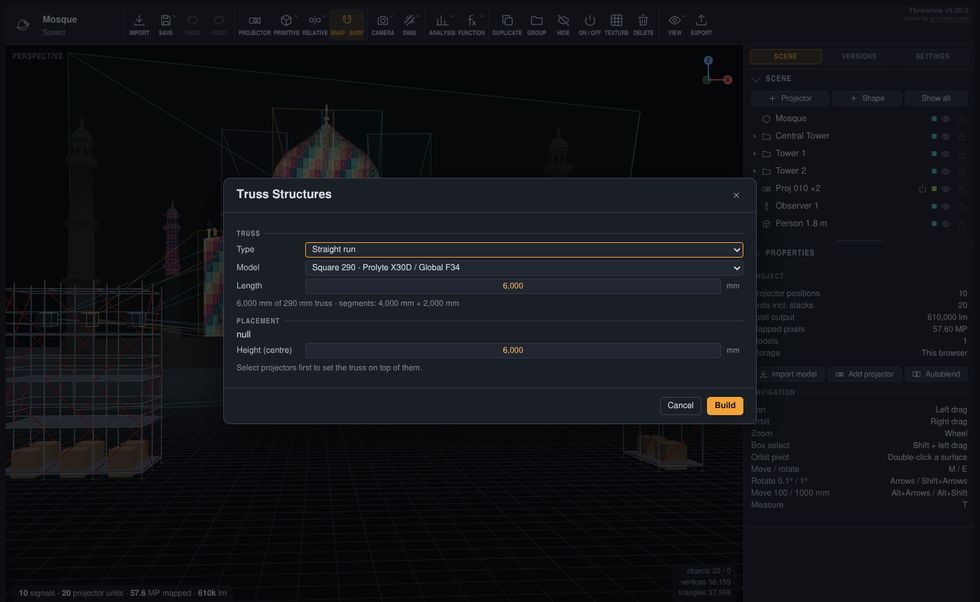
Primitive → Truss Structures: straight runs or circles in common models; projectors can be attached to the top with hanger clamps and move with the truss.
Undo, copy, paste, groupCtrl+Z / Ctrl+C / Ctrl+V / Ctrl+G
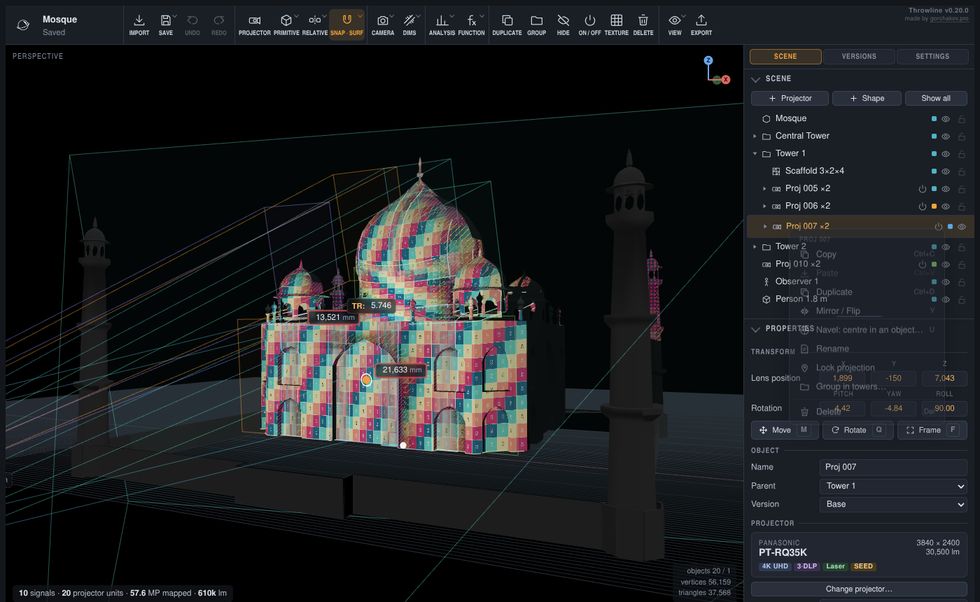
Undo / redo 100 steps; copy / paste in place (relatives included); Ctrl+D duplicates; Ctrl+G groups.
UST and fisheye lenses
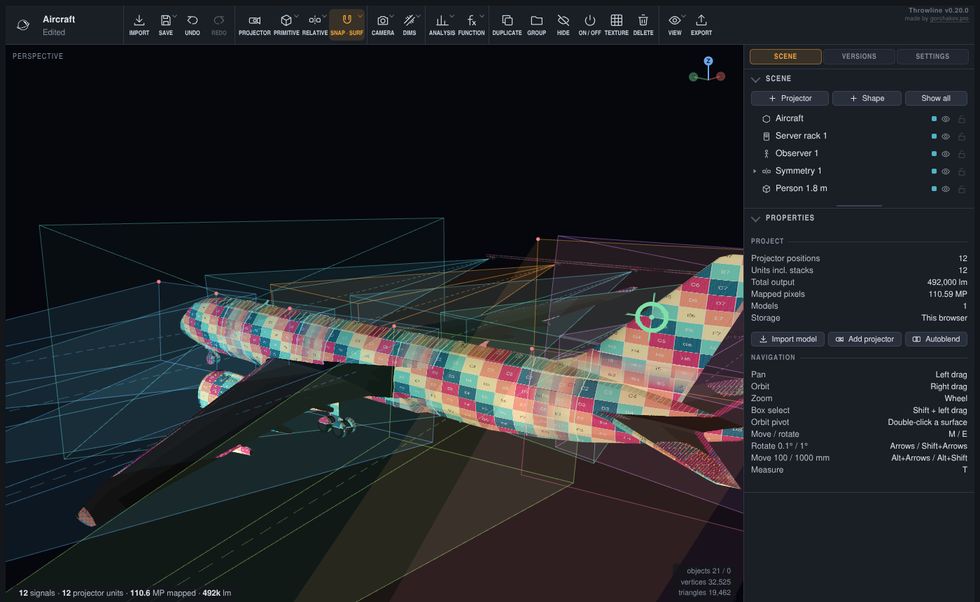
UST lenses are drawn with their real rig and real image geometry. Rear UST (ET-D75LE95 class): the projector faces away from the surface, the beam leaves a mirror 292 mm in front of the body and 29 mm short of the lens tip, and the image sits 0.735 V above the axis at the standard position (Panasonic: L1 = 0.303 × SD + 0.020, A1 = 0.184-0.283 × SH − 0.128), shift ±5 % V, ±12 % H. Example: 12.0 m wide on a PT-RQ35K gives L1 4.308, L2 4.337, L3 4.016, L4 3.236 m and A1 1.252-1.994 m. Epson ELPLX: centre 0.57 V, ±12.6 % V. Other rear UST lenses use the closest published family. 90° periscopes (Barco TLD+ / ILD / G, Christie, ET-D3QW200, ET-C1U090) stand the body side-on. Fisheye lenses bow the image edges, blur only the outer 1-2 % and end the beam on a convex cap that touches and slightly passes the surface.
Versions
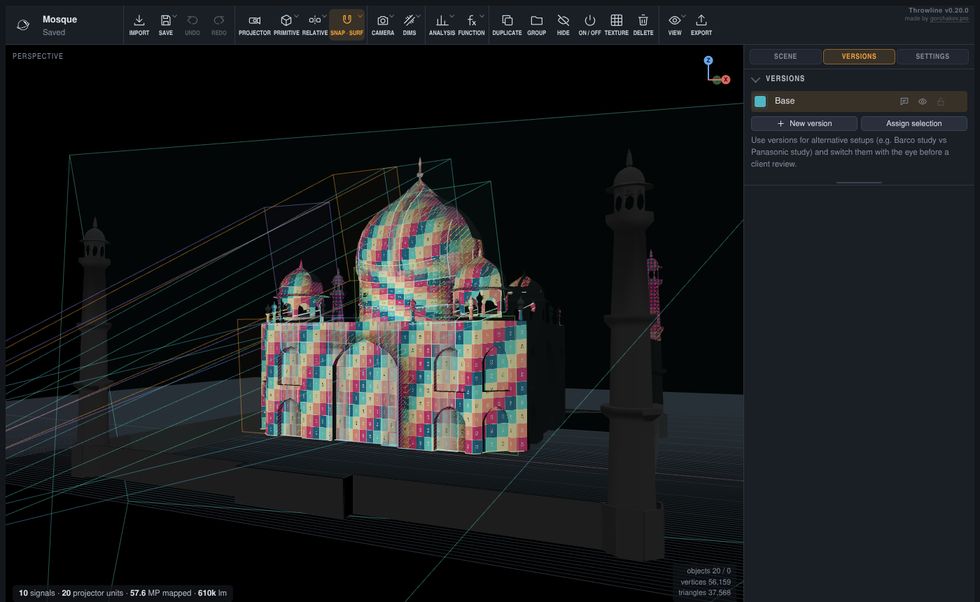
The Versions panel keeps alternative layouts. Click a name to make it active; double-click it (or the pencil) to rename. Project history is something else: on a Spill9 server, Save → Project history… lists earlier saves of the whole project (one about every 10 minutes while you work, the newest 20) and Restore puts one back - the version you had stays in the list.
View presets
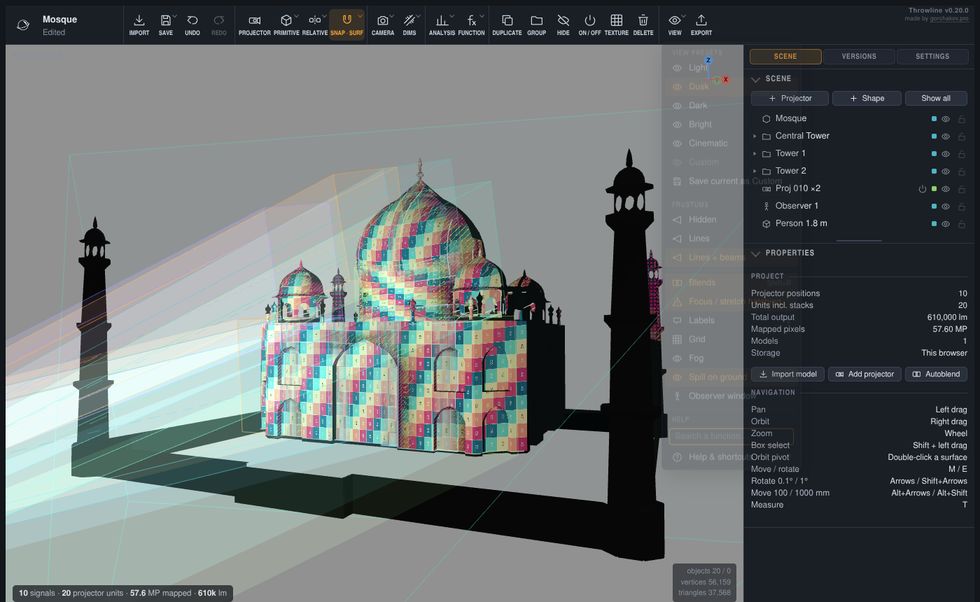
View → presets and Settings → View preset: Light, Dusk, Dark, Bright (near-white studio, fine grid, frustums as lines) and Cinematic (deep blue-black night, haze in the air so the beams read as shafts of light, the venue barely lit, no labels), plus Custom - save the current background, grid, light, fog and frustum display with Save. Cinematic also switches on three presentation extras, each with its own switch in Settings: Volumetric beams (the light of every projector seen in the haze, tinted by the content and stopped by whatever stands in the beam), Bloom (bright areas glow) and the Filmic (ACES) tone curve. It also sets View → Frustums → Beams only: the shafts of light without the wireframe, handles and markers around them - the view to show a client. Settings → Beam strength makes the shafts stronger or lighter. They change the picture only - lux, pixels and blends are calculated as before.
Views and camera1-8, Option+§
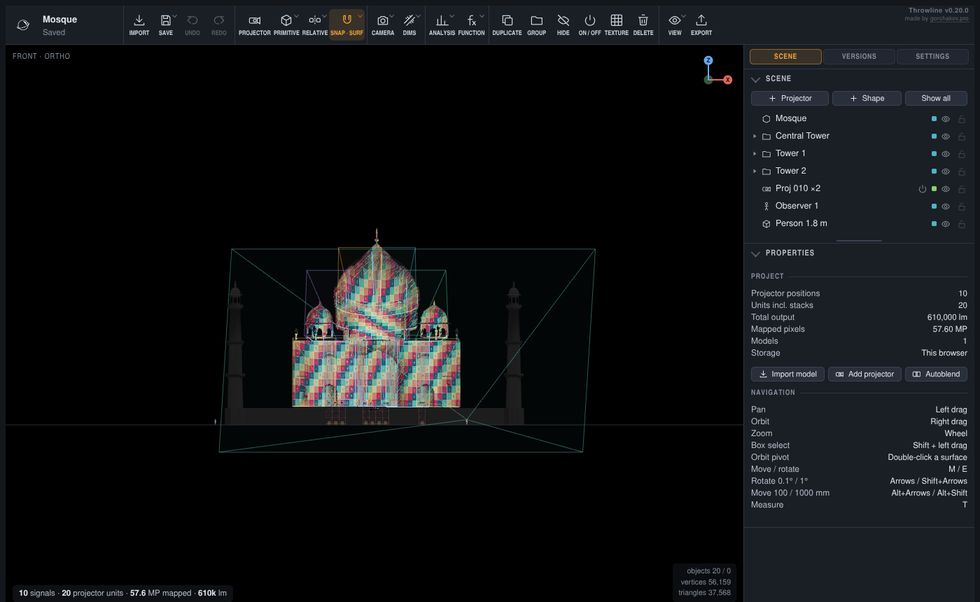
1-8 jump to the standard views; Option+§ toggles perspective / orthographic. F frames the selection, Shift+F frames everything.
Nothing found. Try another word.
Release notes
v0.38.0Performance, design, usability
- Application: other design improvements
- Website: other design improvements
v0.37.0Piece size, coloured parts, Projection Study fixes, admin health
- Hide a face: a Piece size slider (Fine to Coarse) sets how much counts as one piece under the cursor - a single facet or a whole dome or spire.
- Colour a part: point at any part of a shape or model and give it its own colour and reflectance; Reset brings the original back.
- Projection Study: Average illuminance in the page 2 table now always matches the current analysis, also when the introduction text was edited earlier.
- Projection Study: files are named with the Document version (for example Tree_Projection_Projection_Study_v2) instead of the template name.
- Projection Study: Layouts always include one ISO view in Cinematic, whichever view is on.
- Website: other design improvements
- Application: other design improvements
v0.36.5Hide a face: hover preview, works on curved surfaces
- Hide a face: hovering now highlights the exact patch that will be hidden before you click.
- Hide a face: now follows smoothly curved surfaces (a dome, a cone, a spire) as one piece instead of stopping at the first small flat facet.
- Bug reports (offline edition) always go straight to Spill9 support now - the editable address has been removed.
v0.36.4Hide a face on any shape
- Hide a face: works on any primitive or model now, not just box and rack - click the button, then click a flat area on the object to cut it out; pick as many faces as you like.
- Each hidden face gets its own Show button in Transform, plus Show all to bring them all back at once.
- Bug reports from the offline edition now default to going straight to Spill9 support; change the address in Settings → Support if you'd rather they go elsewhere.
v0.36.3Ignore issues, align to axes, bug reports, box/rack faces
- Issues panel: Ignore a listed issue so it stops showing up for this project, with a way to see and un-ignore anything you've dismissed.
- Projection Study PDF: fixed the logo rendering stretched on the title block.
- Align to axes: snap the selection's rotation to the nearest 90° on X, Y and Z, in place.
- Settings → Support: send a bug report, with the recent log attached, straight to Spill9 support.
- Box and rack: hide one of the 6 sides to see - and light - what's inside, and show it again.
v0.36.2Bugfixes
- Other minor performance improvements
v0.36.1Side panel width
- A wider side panel gives its room to the labels and the notes; the number boxes, lists and switches keep the width they have at the default panel width. Notes next to switches wrap instead of being cut off.
v0.36.0Throw distance for marked areas, Selected beams, Invert
- Automap for marked areas and facades: Min and Max throw distance; every grid is placed between them (the distance chosen is shown). Faces and tops of cubes, boxes and cylinders follow the same fields (0 = automatic).
- Frustums → Selected beams: lines and beams of the selected projectors only.
- Automap → Invert projection area: the same object mapped the other way round - a room on its inner walls or on its outer walls.
v0.35.0Spheres, flat tops, areas in space
- A sphere seen from outside is mapped all over: rows round it (upright images where that takes fewer) and its crown square on from straight above - no longer taken for a dome.
- A flat top (a cylinder, a box) is mapped by one grid square on from above; the rows round the sides stop at its rim. A 2 × 5 m cylinder: 5 upright images round it and 1 above, instead of 31.
- Rows round an object from outside also try upright images and keep the layout with fewer projectors.
- Narrow blend is reported only for projectors that blend (neighbours aimed much the same way, or overlapping on a good share of an image) - not for beams that cross the object from opposite sides.
- Undo keeps 300 steps (was 100).
- Automap → Pick target area → Areas in space: blue areas placed in the view and moved, turned, tilted and sized like any object, as many as needed; Done marking maps a blended grid square on to each (Map the marked areas from the area's properties too).
- The Automap projector is chosen from a drop-down list with model, brightness and resolution in every form (Best fit from the whole library for a flat target).
v0.34.0Automap reads the object, Autodome inside Automap
- Automap reads what the object is from its surface: cube, box, pyramid, triangular prism, cylinder, cone, dome, sphere, flat panel, triangle, long vault, or a complex building - shown as Object in the Automap window, and the mapping follows it.
- A cube or box is no longer taken for a dome: the surface itself must lie on the sphere and face its centre, not only the corners.
- Flat-sided objects (cube, box, pyramid, prism): each face square on as a blended grid (the top from above), compared with rows round it - the one with fewer projectors is offered (a 4 m cube: 5 projectors instead of 31).
- A building (a castle): the facade facing the camera, or all four facades at once; grid tiles with nothing behind them (sky beside a tower) are left out. Rows round a building now aim at its outer surface, not its courtyard.
- Autodome is part of Automap: a dome opens its form in the same window, and Layout Fewest projectors compares round the edge with from the centre.
- Resolution Native is the panel (physical chip); the pixel-shift output (for example 3840 × 2400 on a 1920 × 1200 XPR panel) is a signal to choose. Pixel pitch, signals and the planners follow.
- Changing the resolution of several projectors updates their pixel pitch labels at once.
- Barco QDX-4K45: native 3840 × 2400, no pixel shift.
v0.33.0Automap with the fewest projectors, pixel-shift data
- Automap inside a long space (a vault, tunnel or pavilion with rounded ends) also lays rows along the length - symmetric on both sides, one on the ridge, closing in on the tip of each end - with the images landscape and upright, and keeps the layout with the fewest projectors. Rows: Fewest projectors / Along the length (landscape or upright images) / Round the walls; the alternatives are listed under Compared.
- Automap takes out every image the others make unnecessary (each point it lights is well inside another image, so the blends keep room): inside the Zero pavilion 44 projectors instead of 59 at the same light.
- Projector library: physical panel resolution and pixel shift (Barco XPR and 2-way, Panasonic Quad Pixel Drive, Christie PPS, Epson 4K Enhancement) on the card, in the editor and in the Projection Study; the resolution stays the one the projector puts up.
- Optoma ZU2200 and Sharp/NEC PX2201UL are 1-chip DLP (ZU2200 0.96"); Christie Griffyn M 4K35-RGB renamed Griffyn 4K35-RGB; Christie M 4K25-RGB and Panasonic PT-FRQ60 notes corrected.
v0.32.0Automap on one part, towers, lens editor
- Automap: Pick target area → One part of a model maps only the piece you click (from inside, round its outside or the side facing the camera); the rest of the venue still blocks light.
- Automap round the outside puts a scaffold tower under every raised position, a tower depth behind the ground row, with the images locked where the plan put them.
- Automap: Image layout - staggered rows (fewer projectors) or aligned columns (the seams run straight through the rows).
- Planning runs in the background in the offline edition: the view stays live while Automap and Autodome work.
- Lens menu: All lenses lists the lenses that do not fit the projector too, greyed with the reason; with a signal narrower than the panel each lens shows its image throw ratio.
- Settings: outdoor ambient presets (night, city square, twilight) and the light the images need for the contrast you set, with one click to use it as the target.
- Heavy models are simplified on import by default (800k triangles from 600k, 400k from 1.5 million); Keep all triangles keeps every detail.
- Barco TLD+ 0.73 fixed lens: part number R9862000. Christie 4K15-HS removed from the library.
- The offline edition is 3 MB smaller: the PDF, Excel and datasheet readers are unpacked only when first used.
- Projection Study: a study saved with an older template name opens with Classic instead of failing.
v0.31.0Maker lens tables, Automap round the outside
- Lens data from the makers' tables for Barco (TLD+, G lens, GLD), Christie (ILS1, ILS4, HS / Jazz, GS), Panasonic (ET-D75, ET-D3L, ET-D3Q, ET-C1, ET-EM), Epson (ELPL, L25000 / L30000), Sony VPLL, NEC NP-ZL, Optoma BX-CTA and Digital Projection: part numbers, throw ratios and lens shift.
- The throw ratio follows the projector: its panel size (Barco TLD+ N4K / WUXGA / WQXGA / UXGA, Epson 0.76 / 1.03-inch), its platform (Christie HS, 4K7 / 4K10-HS, Jazz; Optoma ZK1120 / ZK1320) or its model group (Panasonic ET-D75).
- A lens that does not fit a projector is no longer offered for it (for example Epson ELPLM08 on 1.03-inch bodies, Christie 140-144100 on 4K7-HS).
- With a signal or crop narrower than the panel (4K UHD on a 4K 17:9 projector, 16:10 on PT-RQ50K) the projector panel shows the image throw ratio next to the lens range.
- Lens notes under the lens: brackets, motorized or manual zoom, the platforms a lens fits.
- Automap: a closed object seen from outside (a pavilion, a tent, a vault) is mapped round its outside - rows of images wrap round it, the upper rows from tower decks high enough to reach the roof. Map from: Inside or Outside in the Automap dialog.
- Automap and Autodome: a long vault or pavilion with rounded ends is no longer taken for a dome; a person or small object next to the venue no longer shifts its centre line.
- Christie CP2309-RGB removed from the library.
v0.30.0Snaps on projectors, every deck level, checked lenses
- Hover any menu item or setting: a tooltip gives its full name and what it does, also when the label is cut short.
- Snaps and Measure land on projector bodies, towers, scaffolds, truss and people as well as the venue - vertex, edge and surface.
- Group in towers: Projector deck at lists every lift of the tower from the top down, marked (top) and (bottom). It follows the system and height you pick, Layher 1.57 lifts included.
- Truss Structures: a projector in portrait hangs below the truss, clamped at its real top, never inside the truss.
- Lens data checked against the makers' published tables. Epson ELPLU03S, ELPLU04 and ELPLM10 on EB-PU and EB-L1495U bodies (1.0 / 1.03-inch panels) now use their own throw ratios (ELPLM10 2.42-3.71). Panasonic ET-D75 / ET-D3 lenses take the right column per body: 0.96-inch, 4K+ (PT-RQ35K) and 0.8-inch (PT-RQ25K, RZ24K, RQ18K, RZ17K). Panasonic ET-D3Q (PT-RQ50K) and Barco TLD+ (WUXGA 0.96-inch and WQXGA / 4K UHD 0.9-inch) updated to the published values.
- Lens menus, the Projection Study and the equipment list show the throw range each lens has on the chosen projector.
v0.29.0One Automap, blend masks, 128 projectors
- Automap and Autoblend are one tool: Function → Automap (Shift+A). Choose what to map - Auto (Spill9 reads the scene: a dome goes to Autodome, a space you stand in is mapped from inside, otherwise the side of the object ahead), From selection (only the side that faces the camera), Pick target area (two corners, three points, the bottom and top of a tall target, or a free rectangle) or From camera view (everything the camera sees, projected from where it stands).
- The target shows in blue in the view and in a small window at the bottom left while you choose the projectors.
- Blend masks and warp: Export → Media servers. A mask for every projector at its native resolution, worked out on the venue model, for disguise, and MPCDI 2D files (alpha map and warp) for WATCHOUT 7 and PIXERA.
- Up to 128 projector positions are lit at once (a stack counts as one).
- Client comments: people who open the published client view leave comments without an account, pinned to a point of the venue. You answer them and mark them done in the project.
- Settings → Performance → Record performance: a report of where the time goes, to copy and send.
- Adding to an array with + rebuilds only the new copy; undo keeps only what changed; large scene trees draw only the rows in sight.
- The Projection Study names the rigging the projectors really have: scaffolding structures, truss, free-standing truss supports or free-standing positions.
- The lens shown in the properties, drawn in the view and written in the Projection Study is always the same one.
v0.28.0Automap, dome grid, IBM Plex Sans
- Function → Automap maps the inside of a space of any shape - a long pavilion with rounded ends, a hall, a tent, a vault. Select the space, set the projector, illuminance and blend overlap; Spill9 lays rows of images from the foot of the walls to the top, places every projector at the wall opposite its image, picks lenses, rolls each image square to its row and checks the result on the real surface point by point, filling what is left dark.
- Dome grid: a test picture that lies on the dome itself - a ring every 10° of elevation, a line every 15° of azimuth with its figure, the horizon in orange and a target at the zenith. Every projector of the group shows the part its image covers, so the grid runs on across the blends. Autodome puts it on every new dome rig; it is also in the texture menu of an Autodome group.
- Sample videos show a still frame in the texture menu, and your own video textures get one too.
- New UV grid test pattern; the checker patterns are now called UV checker A and B.
- The interface and the Projection Study use IBM Plex Sans.
v0.27.1New test patterns, licences
- New built-in test patterns: UV grid (the default), Checker A and Checker B. Projects that used the old patterns show the new ones in their place.
- The "made with Spill9" line of a Projection Study links to spill9.com in every edition.
v0.27.0PDF datasheets, an editable equipment list, quicker arrays
- Create projector reads the maker's PDF datasheet: drop it on the box (or choose it) and brand, model, lumens, resolution, technology, light source, chip size, body size, weight, power, noise and the lens range are filled in. Lenses that are in the maker's lens set come in with their part numbers and shift.
- Load lens set offers the makers' lens families, the same as when you add a projector: Barco TLD+, ILD, G / GC / GC++; Panasonic D3, C1, DLE, ET-EM / ET-EL, ET-D3Q, ET-D75; Christie ILS, CT Legacy, HS, GS; Epson ELPL and ELPL Legacy; Sony VPLL; and the generic sets.
- Export → Equipment list is now editable: change any line, remove it or add your own. It shows everything the pick list and the Projection Study print - cables, spare lines, power and accessories - and your changes are saved with the project and used by the pick list, the Projection Study and the CSV.
- Projection Study: a small "made with Spill9" line with the version it was made in, at the foot of the disclaimer, linking to the Spill9 site. Switch it off in Projection Study → Pages.
- Adding projectors to a linear or polar array stays quick as the array grows: the floor that catches spill light only works out the beams that reach each part of the screen, and the shadow maps are redrawn a few at a time while you add copies instead of all at once.
v0.26.0Faster light on big rigs, steady beams while dragging
- The light is worked out per patch of the screen: every 16 × 16 pixel tile tests only the projectors whose beams can reach what it shows. On a dome or a big rig most of the picture skips most of the projectors. Lux, pixel density, blends and the picture itself come out exactly as before.
- Surfaces are drawn so the graphics card can skip the ones hidden behind others before it lights them. Models with many layers - a dome seen from outside, a venue with its back walls - draw faster, most of all on Apple graphics.
- Volumetric beams are kept between frames. Selecting something, a label or a tool preview no longer marches the haze again; only moving the camera, a projector or the scene, or content that changes, does.
- Dragging a projector: its own shadow follows it on every frame, so its beam no longer flickers or loses pieces while it moves.
- Client view links open the way the project was saved: a project saved in Cinematic shows its beams without labels. The frustum mode and labels are now saved with the project and with project files.
- A projector photo that changes on the server shows up at once, instead of after the browser's month-long cache runs out.
v0.25.0Barco I65, beams that respect the scene, faster haze
- Barco I65-4K10, I65-4K13 and I65-4K16 are in the library with the full ILD lens range, including the new ILD 0.35 UST.
- Volumetric beams are cut by whatever stands in front of them: a wall, a truss or the dome shell now hides the part of the beam behind it, instead of the haze showing through.
- The haze is drawn in its own pass at half size and laid over the picture with a soft filter. A scene with many beams - a dome rig crosses a dozen of them on every pixel - draws the beams about three times faster, and the picture is the same.
- Flying the camera into a beam no longer makes it jump in brightness: the haze fades down smoothly over the first metre inside.
- Projection Study and the library: the photos of the Barco UDX family are cut out cleanly - the body is no longer missing behind the frame.
- Client view links open again.
- Storage per account is 5 GB.
v0.24.0Beams only, stronger light shafts, smoother arrays
- New View → Frustums → Beams only: the shafts of light on their own, without the wireframe, handles and markers - the view to show a client. The Cinematic preset opens in it.
- The volumetric beams are stronger and better defined: a bright core with a soft edge, a short fade out of the lens and at the far end, and no washing out when a dozen beams cross the same pixel. Settings → Beam strength sets how heavy the haze is.
- Adding Array and Polar copies stays smooth with other objects on screen: while the copies come in the view is drawn the same quick way as during a drag, and goes back to full quality when you stop. Before, every single copy was drawn at full resolution with every projector in the scene, which is what made a scene with a large object (or the ground spill) feel heavy.
- Sample projects load again on the server edition.
v0.23.0Cinematic light, project history, media server export
- Volumetric beams: in the Cinematic view the light of every projector is visible in the haze - tinted by the content, fading with distance and stopped by whatever stands in the beam, so the shafts end on the building and objects cut shadows into them. Settings → Volumetric beams.
- Bloom: bright areas of the picture glow softly into their surroundings (Settings → Bloom, on in Cinematic). Exported render images carry it too.
- Filmic tone curve (ACES) for presentation views: deeper blacks, a soft shoulder in the highlights, richer colour. Settings → Tone curve. Lux, pixels and blends are calculated exactly as before - the extras only change the picture.
- Project history: the server keeps earlier saves of a project (about one every 10 minutes while you work, the newest 20). Save → Project history… → Restore puts one back; the version you had stays in the list.
- Export for media servers: a projector table for disguise Designer (Import projectors from table) and a placement script for PIXERA that moves the projectors through its API - position, aim, throw ratio, lens shift, resolution.
- Heavy models open without freezing the window: their ray-tracing trees are built in background workers.
- Models are stored as compact binary files (about a quarter smaller, quicker to open) and the same model is stored once per account - opening a sample again or importing a venue twice no longer uses more of your storage.
- Models and pictures that no project uses any more are removed from your storage after a week.
- Projector photos in the library load when they are shown, so the app starts quicker.
v0.22.0Audit release: faster start, safer saves, steadier server
- The app starts from a 1.3 MB script instead of 7 MB: the built-in test patterns, demo videos and sample venues are no longer packed into the code - they are ordinary cached files, fetched the first time they are used. The script itself is served brotli-compressed.
- Saves cannot be lost any more: every save is written to this browser first and marked "to send"; a save cut short by a closed tab, a lost session, a server restart or a dead connection is sent the next time the app opens or the network returns. Before, edits made offline were dropped if the page was reloaded.
- Every request has a deadline, so a hanging connection no longer leaves the project on "Saving…" for ever; a failed save is tried again by itself (15 s, 30 s, 1 min … 5 min). Model uploads and downloads are retried three times.
- Two tabs or two computers on one project: a save over a newer copy is refused instead of silently replacing it. Your version continues as a copy and a message tells you so.
- Memory: models and textures of projects opened earlier in the session are released when another project opens (they used to stay in RAM and on the GPU until the tab was closed); videos of the previous project are stopped; observer helpers are released.
- If the browser takes the graphics context away (driver reset, laptop switching GPU), the view is rebuilt when it returns instead of staying black.
- Clicking a number field selects the value, so you can type over it at once; a second click places the cursor.
- Server: a malformed web address could stop the server process - fixed, and one faulty request can no longer take the server down. Model uploads are streamed to disk (a 300 MB model no longer sits in the server memory). Database statements are compiled once. Static files answer with 304 when unchanged. Login takes the same time for unknown addresses. Expired sessions are cleaned every hour.
- Smaller: the counters under the viewport are rewritten only when they change; the light shader reads each projector row once; very large scenes cap the undo history by size.
v0.21.0Fast on the server, snap to everything, smoother arrays
- Server edition runs at full speed: the protected app no longer encodes every string and property lookup, which made heavy maths 20-35 times slower than the offline copy. Autodome on the server now plans a dome in under a second instead of 10-15 seconds.
- The app code is served once as a separate cached file, so opening a project again starts faster.
- Clicking a number or text field puts the cursor where you click instead of selecting the whole value. Tab into a field still selects it for quick typing.
- Snap to vertex, edge and surface now grabs every object: projector bodies, scaffold towers, truss, FOH and racks, shapes and models.
- Adding array and polar copies stays smooth when the scene already has other objects: footprints and label values only test the surfaces inside each beam, and the footprints of new copies are drawn over the next frames instead of all at once. Surfaces outside every beam are skipped by the light shader.
- Account page shows how much of your storage you use.
v0.20.0Faster everywhere, Autodome round the edge, new mosque
- Speed: only what changed is redrawn. A moved projector redraws its own shadow map, label and outline; a shape dragged in front of the beams redraws only the beams that reach it; adding or removing copies of a Relative redraws those copies. Shadow maps are spread over a few frames, so adding the 30th projector is as quick as the 3rd.
- Autosave no longer renders the scene again for the dashboard picture: the picture is copied from a frame already on screen once the scene is still, and autosave waits until your hands are off the mouse. This was the stutter when you grabbed a shape a second time.
- Zooming and orbiting stay at full quality: no more low-resolution blur and the half-second wait when you zoom out.
- Label values: focus-locked projectors are measured at their focus plane (no extra rays), the others with a 3 × 3 grid; labels of projectors that did not change are kept.
- Autodome covers the whole dome with no gaps: every image is traced onto the dome and the plan is accepted only when every point is covered and the blend you set (15-20 %) holds everywhere - between the images of a ring also at their top and bottom, between rings and with the top image (the rings reach the circle the top image covers all round, not its corners). Each image must be reachable with a lens of the set at its own throw. After Map the dome the result is checked on the dome (nothing in the way, projector bodies included) and the message shows the coverage.
- Autodome layout Round the edge (new default): every projector on one circle at the edge of the dome at the mount height above the floor (1 m by default), each ring turned so no projector stands in front of another's lens, and one projector in the middle pointing straight up for the top. A dome on a ring wall with the projectors below its edge is lit without a single shadow; projectors above the edge are flagged because their bodies shade the base.
- Mosque sample: new, more detailed model.
- Removed the Shadows switch (View menu, Shift+S): light always stops at objects.
v0.19.0One Scene panel, light that never leaks, Autodome blends on the dome
- Right panel: Scene, Versions and Settings are tabs, one at a time. Scene holds the list and the properties of the selection under it, now in the order Transform, Object, then projector / shape / model.
- Settings → Simple projector bodies: a box and a lens cylinder at the real sizes instead of the detailed bodies, much lighter for the graphics card.
- Autodome measures the blend on the dome: every image is traced onto the sphere from where its projector stands, so the overlap between neighbours and between rings follows the percentage you set, rings are as few as the images allow (a 10 m dome with 11.4 m images: two rings and the top) and every image has the same width.
- Scene list: power, eye and lock on a selected row switch the whole selection; the list keeps its scroll position.
- Snapping works when dragging the free centre of the move gizmo, and for multiple selections.
- Light never passes through objects: occlusion is always on (old projects could switch it off), the shadow test is offset towards the light so thin panels in front of a surface block it, and shadows stay on while dragging.
v0.18.0Autodome, smooth editing, Word study like the PDF, new logo
- Autodome (Function → Autodome): select a dome, choose the projector, the illuminance (200 lx by default), the pixel pitch and the layout - from the centre, around the base or from outside - and the whole dome is mapped, the top included: rings of images from the base up, blends kept between neighbours and rings, the zoom of every projector set for its own throw.
- New Function menu in the toolbar with Autoblend, Autofocus and Autodome.
- Smooth editing: while a projector, a handle or a polar array is dragged, the light is drawn as a fast preview (lower resolution, no cast shadows, labels and shadow maps wait) and the full render comes back on release. Polar arrays with 10+ projectors stay fluid; only the Relative is rebuilt while it changes, not the whole scene.
- Polar array: Count, Total angle and Centre X / Y update live while you drag, press + / - or move the Relative; the centre is in scene coordinates.
- The master of a Relative has a thin red outline and a small red dot on a corner of its cone.
- Navel works on any pair: projector → object, object → projector, object → object and projector → projector.
- Hold Shift while dragging the free move handle, a plane, a focus point or the centre of a polar array: the move stays parallel to one axis.
- Snapping: vertex and edge snap match the object's own corners to the nearest scene vertex or edge; Surface snap lands objects with their feet on the floor, a roof or a scaffold deck.
- View presets in order Light, Dusk, Dark, Bright, Cinematic, Custom - Bright is a daylight studio, Cinematic a hazy night with light shafts.
- Observer is drawn as the 1.8 m person with the viewer function; Person stays a plain figure.
- Projector photos on a transparent background in the library and in the Projection Study; uploaded photos on white are cut out automatically.
- Projection Study in Word looks exactly like the PDF: colour scales, legends, title strips and every picture in place, every text editable.
- Client view links can be protected with a password.
v0.17.0Ready-made samples, steady labels, cleaner Projection Study
- Sample projects Castle, Mosque and Aircraft open with their full projector rigs, towers, truss and observers, on the new venue models.
- The scale figure is a 1.8 m silhouette drawn from a real person.
- Projector labels measure at the focus plane (focus-locked and projection-locked projectors) or at the median depth of 25 rays over the image, so projectors thrown the same way show the same lux and pixel pitch, and a centre ray that clips an engine, an edge or a gap no longer makes a label jump; labels are re-measured whenever the scene changes.
- No-lens warning: when a projector moves so far (or so close) that no lens of its set reaches the throw ratio, a notice says so, the label shows NO LENS and Issues lists it.
- Average pixel pitch is the average of the projector labels; average stretch counts only the useful area - light landing at a usable angle, not the grazing spill that gets masked.
- Projection Study: the appendix divider is called Layouts (Arrangement and analysis); only average illuminance is shown; the covered surface is given in m²; overlap is shown as min / max between neighbours; the licence line appears once, on the last page.
- The Scene list keeps its scroll position when a projector is selected.
v0.16.0Sample projects, real UST geometry, Projection Study templates
- Sample projects folder on the dashboard for every account: Castle, Mosque and Aircraft open as new projects with the venue model imported and optimised. The old mosque massing sample is gone.
- UST lenses with their real image geometry: the image sits off the axis at the maker's standard position, the beam leaves the mirror, the body sits where the maker's drawings put it, and lens shift moves the image from there. ET-D75LE95 on a PT-RQ35K, 12.0 m wide, matches Panasonic's calculator: L1 4.308, L2 4.337, L3 4.016, L4 3.236, A1 1.252-1.994 m, 339 lx.
- Every new project starts with a 1.8 m person for scale; more from Primitive → Person 1.8 m.
- Projection Study: three templates - Classic, Blueprint and Showcase - with every text editable (cover, page 2, table and appendix titles, disclaimer), saved with the project. Export as PDF or as an editable Word document (.docx).
v0.15.0Navel, outward polar arrays, real lens bodies, subscriptions
- New Navel tool (U, Snap menu, right-click): with a projector selected, click an object and the projector moves to its centre - for a dome or sphere the centre of the sphere its surface lies on, found by a sphere fit that ignores doors and base rings. With an object selected, click a projector and the object moves so the projector sits at its centre.
- Polar array: when the centre moves away from the master, a projector aimed at the centre turns to aim outward, so the copies shine away from the circle instead of into each other.
- Every lens has its own body: length, diameter and outline follow the lens - flared wide zooms, standard zooms with zoom and focus rings, long stepped tele lenses, flush Epson lenses. Official maker dimensions for Panasonic ET-C1, ET-D3LES20 / LEW200 / LEW201, ET-ELS20 and Epson ELPL; family-typical barrels scaled by throw ratio and weight for the rest. The body sits behind the lens, so a longer lens moves the body back.
- Subscriptions with Stripe: 1-month and 12-month plans, 3-day free trial for new accounts, Apple Pay and Google Pay in Checkout, plan changes and invoices in the Stripe billing portal. The server finds the plans and sets up its webhook by itself.
v0.14.0Lens presets, Detach, help search
- Lens presets in Add projector and in the projector panel: official lens families by maker - Barco TLD+, ILD, G / GC / GC++; Panasonic ET-D3L, ET-C1, ET-DLE, ET-EM / ET-EL, ET-D3Q, ET-D75; Christie ILS, CT legacy, HS, GS; Epson ELPL and ELPL legacy.
- The last lens set used for a body is remembered; the card's own lens with the same part number wins over preset values; lenses outside a body's family are marked 'check fit'.
- Right-click a linked copy → Detach this: one projector or object leaves its Relative and becomes independent.
- Mirror / Flip renamed and moved to the top of the Relative menu; By numbers moved to its own block at the bottom.
- Rotate gizmo on Q (E still works).
- Notice when a projector already under a Relative is used for another one.
- Fan: the orange angle cube opens the fan smoothly (it was stuck at 90°).
- Symmetry planes snap to any vertex or edge midpoint of other objects.
- Fisheye beams bulge right up to the surface and slightly past it.
- Help has a search field: type a function name to open its description and how it works.
v0.13.0Interactive Relative tools, View menu
- Symmetry, Linear array, Polar array and Fan by dragging handles in the viewport.
- Mirror planes around the selected projector with snapping.
- View menu toggles for grid, fog and ground spill.
- Versions can be renamed.
- 1 % edge blur on fisheye beams.
- Right-drag orbits around the object under the cursor.
- Rear UST lens snout drawn at real size.
- Scaling a primitive updates its size fields; Enter confirms dialogs.
- Ground tower with base plate under selected projectors.
v0.12.0Mirrored copies, scaffold bays
- Mirror / mirrored copy on Y.
- Scaffold towers by bays deep and lifts high.
- Soft shadows and projector bodies casting shadows as settings; shift shown in the maker's units.
- Tall and side-mounted UST lens rigs.
v0.11.0Truss, scaffold, full lens database
- Truss Structures: straight runs and circle truss in Prolyte / Global sizes (ladder 290, triangle 290, square 290 / 400 / 520), set on top of selected projectors.
- Scaffold Structures with conversion to Layher 2.07 bays; floor levels.
- Lens database expanded to the makers' full lists with part numbers, throw ratio ranges and H / V shift limits per lens (Barco, Panasonic, Christie, Epson, NEC / Sharp).
- Throw direction and side fisheye for UST lenses.
- Option (Alt) held shows scale handles; Mirror (Symmetry) on Y.
- Projector database export / import as an Excel workbook.
v0.10.0Bigger projector library
- New bodies: Barco HDF-W35, QDX-4K45, UDM-W22; Christie Boxer 4K30, Griffyn 4K50-RGB, Griffyn M 4K35-RGB, M 4K25-RGB, 4K15-HS, D20WU-HS; Panasonic PT-RQ18K, RQ25K, RZ17K, RZ24K, MZ780, MZ880, FRQ60; Epson EB-L1495U; Optoma ZU2200.
- Native 4K and pixel-shifted 4K chips with their own throw ratios; xenon lamp light sources.
- Autoblend target area by two corner clicks.
v0.9.0Offline edition, read-only client view
- Read-only client view for published projects (exports off).
- Library brought up to the makers' current datasheets.
v0.8.0Accounts and server
- Projection lock: a projector keeps its image on the surface while it moves.
- Group projectors into towers; tower drawings.
- Multi-selection editing and selection outlines.
- Projector photos in the library.
v0.7.0Observer, textures, blends
- Observer (viewer eye) with a picture-in-picture POV camera.
- Texture dialog: keep original textures, switch them off or override the colour.
- Blend view: overlaps cross-faded or summed; uniformity and spill dots.
- Context menus in the viewport and the scene tree.
- Dome and polar layouts.
v0.6.0New workspace
- New toolbar, dock with Scene / Properties / Versions / Settings, isometric and orthographic views.
- Move / rotate gizmo with typed moves on the axis arrows.
- Focus and pixel-stretch hatching, spill on the ground.
- 3D projector bodies by maker family.
- Shadows from scene objects in the lux view.
v0.5.0First 3D previs build
- 3D venue import (GLB / glTF, OBJ, DAE, STL, PLY, FBX) with model optimisation.
- Projector library with lenses, shift and real throw ratios; automatic lens choice.
- LUX, PIXELS, ISSUES and BLENDS analysis overlays.
- Projection data CSV import, sample scene, Projection Study PDF and pick list.
- Measure tool with vertex snapping, annotations, autofocus and autoblend.